
Accessing Vulcan
Vulcan can be accessed from https://usevulcan.app/launch.
Vulcan has a free plan and a paid Vulcan Pro plan. See Plans and billing for what each plan includes.
Vulcan works with files stored locally on your device. For the full local workspace workflow, use a Chromium-based browser such as Chrome or Edge. The workspace picker depends on browser folder-access support, so browsers without that support cannot run the normal local workspace workflow. Vulcan can be used on Windows or Mac.
You will be asked to choose a local workspace folder. This is where Vulcan stores modelling inputs, output files, overlays, SAP files, and related supporting files.
On-device storage gives you direct access to your work, but also means you should take care when storing files. We recommend using a secure device, enabling multi-factor authentication where available, and regularly backing up your workspace.
Logging in to Vulcan
You can log in to Vulcan either from the website (https://usevulcan.app/auth) or directly from the web app (https://usevulcan.app/launch).
If you do not have an account, you can start free with just your email address from https://usevulcan.app. New accounts complete a short account setup form before the app opens. See Plans and billing for details.
You can log in with an emailed sign-in link ("magic link") or a password. Free accounts start without a password; to set one, enter your email on the sign-in screen, then choose Forgot password?. If you use a password, we recommend a password manager so you can set a strong one.
Getting help and support
The in-app support chat is available across the app, not only from one section. When you start a conversation, choose a category:
- Report an issue: Available on every plan. Covers broken behaviour, security concerns, lost data, and accessibility problems.
- Project support: Help with a model or calculation, including modelling, evidence, and submission questions. Available with Vulcan Pro.
Vulcan Pro users can attach saved models or draft submissions to support conversations where the app offers that option. Attachments are based on saved files, so save the model or draft before asking for review or support on the latest version.
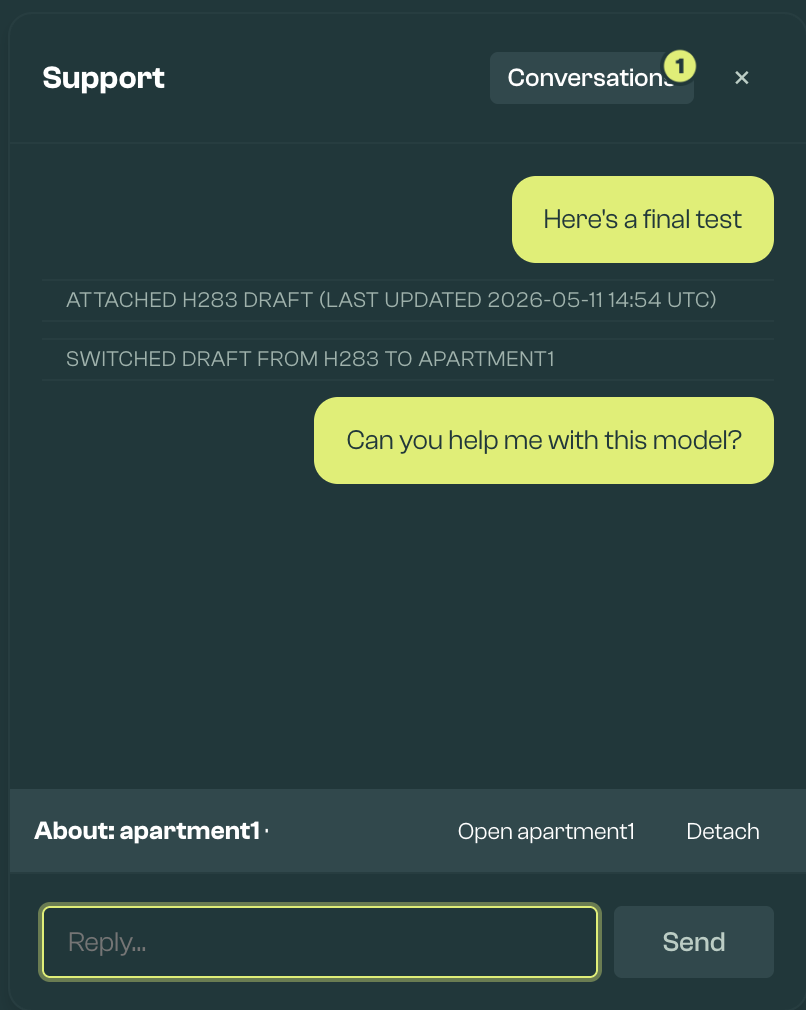
For a new conversation, select the saved model before sending the first message and Vulcan will create the conversation with that model attached.
When attaching a model or draft to a support conversation:
- Attach uploads the latest saved snapshot and links it to the conversation.
- Update refreshes the attachment after you have saved more changes.
- Detach removes the attachment and this conversation's review request. A separate review request for the same draft remains active.
Unsaved Geometry edits are not included in the attached draft. Save the model first, then use Update so the reviewed version matches the latest saved files.
The attached draft is based on the saved files and evidence available to Vulcan, including the HEM input, geometry CSV, defaults file, and linked evidence where available.
Reviews can only be requested for draft submissions. Reviews are evidence-based, so missing evidence may limit what can be checked. If a review is urgent, contact Vulcan directly.
User workspace and input/output files
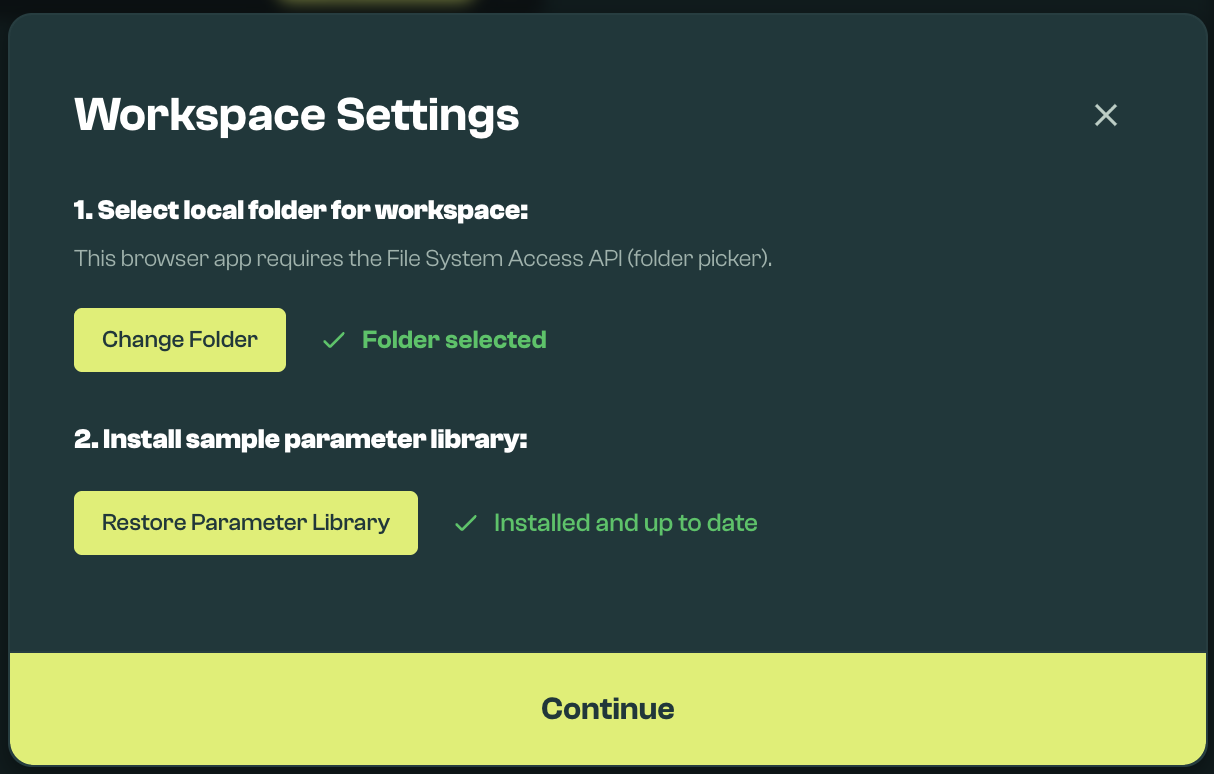
Vulcan stores files locally. If no workspace is set, the welcome screen asks you to choose one. To change it later, open the top-right app menu and choose Workspace. The same menu also contains Customise, integrations, licensing information, and your profile page (also accessible at https://usevulcan.app/profile).
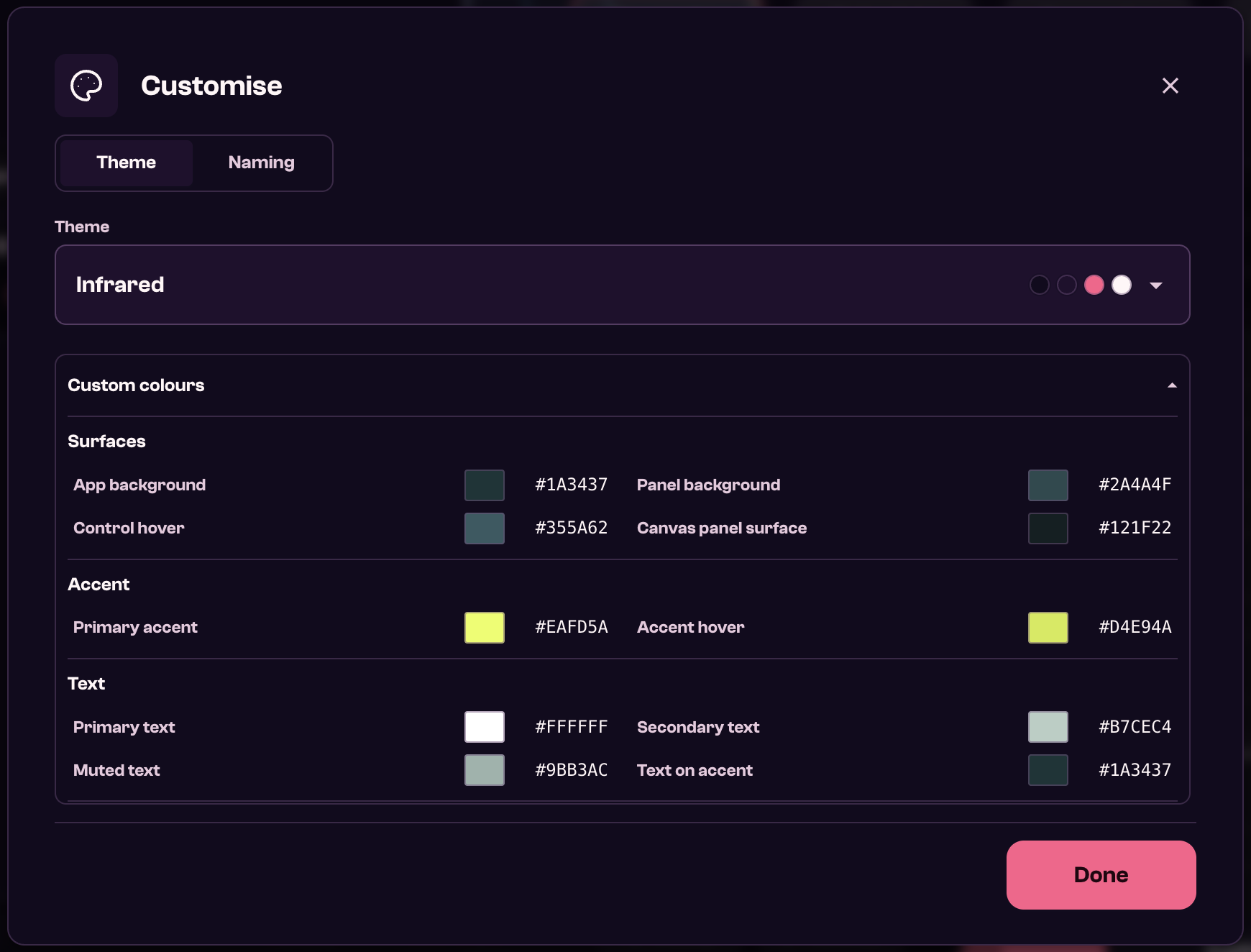
Use Customise to change how Vulcan is displayed on your device and how automatic element names are formatted. Customise is available with Vulcan Pro. The Customise modal has two tabs: Theme and Naming.
The Theme tab lets you choose a theme preset or adjust custom colours. It includes colour groups for the app surface, accent colour, text, borders, status colours, charts, Canvas 2D, and Canvas 3D. Vulcan will show contrast warnings where custom colour choices may make text or controls harder to read.
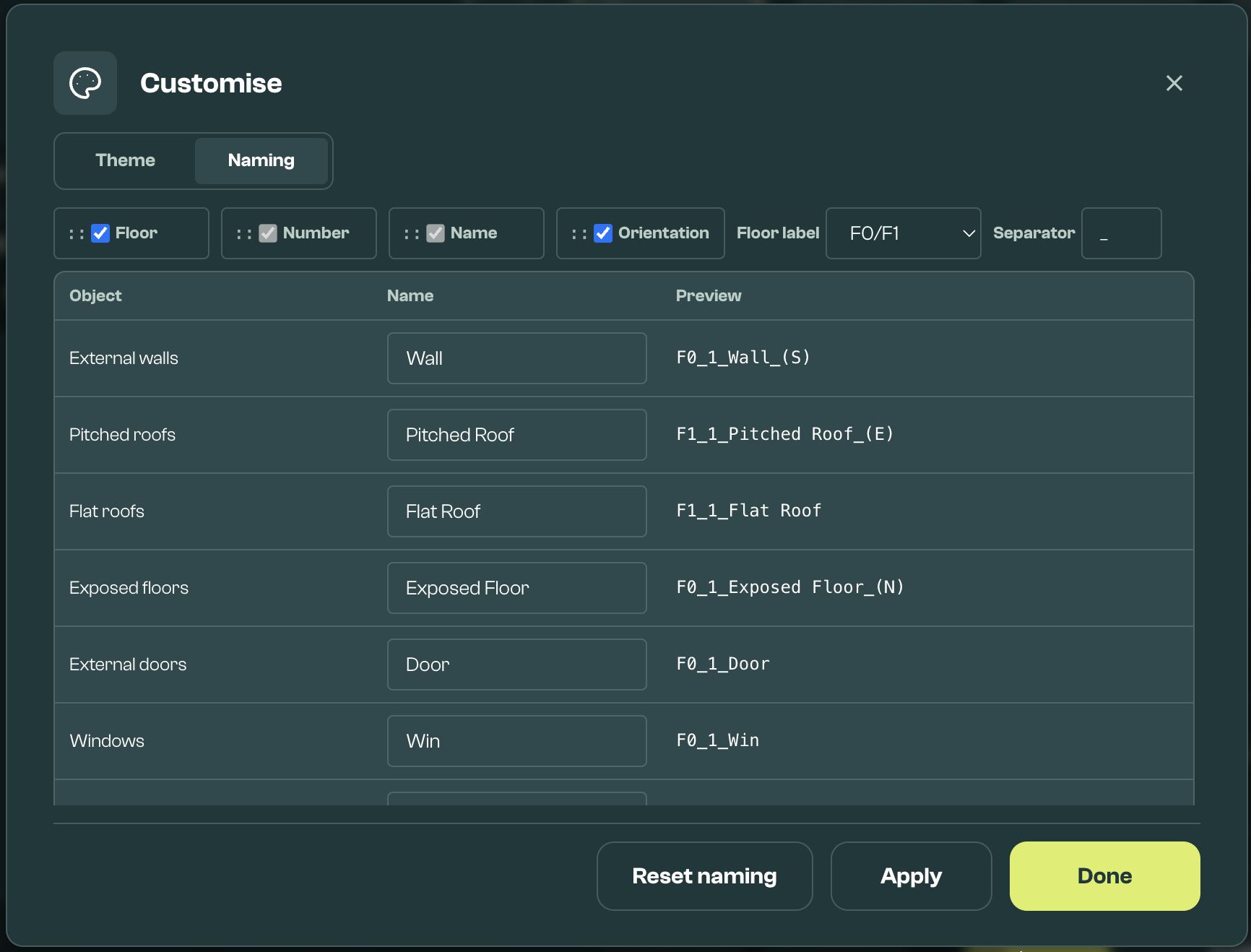
The Naming tab lets you control automatic names for Geometry elements. You can reorder name tokens such as floor, name, orientation, and number; turn optional floor or orientation tokens on or off; choose a Direction style for the orientation token, such as (S), South, or a bearing; set a separator; and edit the default labels used for different object types. Floor labels use a standard style and are not configurable. The preview column shows the resulting format before you apply the changes.
Naming changes apply to eligible auto-generated element names. Elements that you have manually renamed keep their manual name until you select the element and use Reset to auto.
In your workspace, the most important folders are:
input/base_models: geometry CSV files created from the Geometry sectioninput/batch_parameters/base_json: complete HEM input files created when geometry is merged with defaultsinput/batch_configs: scenario configurations created in the Scenarios sectioninput/batch_parameters: the parameter library and any parameter snippets you create or editinput/analytics: metric definitions used in the Results sectioninput/tariff_data_structured: tariff files used for cost metrics in Resultsinput/sap: uploaded SAP PDF/XML files and extracted data used for comparisoninput/overlays: uploaded floorplan overlaysoutput: simulation outputs from the Scenarios sectionlogs: temporary logs created during local modelling workflows
You do not normally need to create these folders manually. If you are unsure, open or refresh the workspace from inside Vulcan.
Sample Parameter Library
The Sample Parameter Library installs the example and reference files used by Geometry, Scenarios, and Results. It writes files into:
input/batch_parametersfor model wrappers, weather, fabric, system, output, and other scenario snippetsinput/defaultsfor the defaults file used when a geometry CSV is merged into a complete HEM inputinput/base_modelsfor example geometry modelsinput/tariff_data_structuredfor example tariffs used by Results cost metricsinput/assembly_libraryfor reference assemblies, materials, and related Geometry Builder data
The library is required. After you sign in, a welcome screen checks the workspace and the Sample Parameter Library, and the app does not open until both are ready. Install or restore the library from that screen when prompted. When a library update is released, Vulcan asks you to update it before the app opens. Restoring the sample library refreshes the sample/reference files it manages. Your own files under input/base_models are preserved, but the sample example_semi_detached.csv is refreshed, so save a copy under a new name before editing it.