
You add thermal bridges in the Geometry section. This page tells you how to set thermal bridging values, and how to suggest and validate linear thermal bridges. For the rest of the Geometry section, see the Geometry Section Guide.
Thermal bridging values
Open Global Settings > Global values > Thermal Bridging to set the fallback psi (ψ) values used for suggested linear bridges, and detailed bridge value sources where enabled. Add individual bridges with the Draw toolbar, or tick Simplified Thermal Bridging in the Zone editor. A zone with neither has no junction heat loss, and Vulcan flags it.
Thermal bridge proposer and validation
Vulcan can suggest likely linear thermal bridges from the drawn geometry. To open the proposer in 2D view, choose Linear bridge or Point bridge in the Draw toolbar, then click Add thermal bridges….

You can also preview suggestions on the canvas, in 2D or 3D view. Choose Linear bridge in the Draw toolbar, then hold A. Vulcan shows the suggested junctions on the current floor. Point at a suggestion to see its junction type, code, and length. Click a suggestion to add it as a Linear bridge. Where several junctions are at the same point, the click opens Choose junction. This list stays open after you release A. Use Choose junction or detail (▾) to select a different junction type or construction detail before you add a suggestion. Click an existing bridge that has an issue to select it. Release A to go back to drawing, or press Escape to close the preview. The preview does not start while a dialog is open or a text field has focus. The Draw toolbar shows how many suggestions are on other floors, and how many need a floor; add those with Add thermal bridges…. In 3D view, the Draw toolbar shows Hold A for suggestions.
The proposer is deliberately geometry-based. It suggests linear Table 3.7 junctions only where the drawn elements provide enough information for the junction location and length:
| Geometry Vulcan looks for | Suggested junctions and choices |
|---|---|
| Vertical wall windows and external doors drawn as straight wall openings | Lintel, sill, and jamb rows. Defaults are E1, E3, and E4. Use the junction dropdown to choose the correct opening code from E1-E4, for example E2 for other lintels. If the opening foot is at a floor slab, Vulcan suggests the wall-floor row instead of a separate sill. |
| Roof windows and rooflights with a non-vertical pitch | R1 head, R2 sill, two R3 jambs, and an R11 kerb/upstand row along the lower edge. Use R2 for a sill detail or R11 for a kerb/upstand; do not keep both for the same physical line unless there are genuinely separate details. |
| External walls linked to ground or intermediate floor slabs | Continuous E5 ground wall-floor rows and E6 intermediate wall-floor rows. Vulcan subtracts door/window foot spans already suggested on the same wall line. Ground rows can be changed to E19 where the inverted ground-floor junction is the right detail. |
| Ground elements with a basement floor type | E22 along each edge of a heated or unheated basement floor polygon. |
| External wall plan corners | E16 normal corners and E17 re-entrant/inverted corners. Endpoints very close together are merged, but T-junctions, loose wall stubs, internal walls, and pitched/roof-like walls are not treated as external-corner rows. |
| Flat roof deck edges | E14 flat roof by default; choose E15 where the same line is a flat roof with parapet. |
| Sloped roof edges | E10/E11 eaves on the first or drawn low edge, E12/E13 gables on suitable perpendicular plan edges, and R4 ridge rows on warm roof polygons where a non-first edge is nearly parallel to the eaves. R5 is available in the dropdown on emitted ridge rows. Cold unheated pitched roofs use the ceiling-level E10/E12 eaves/gable codes and do not emit ridge rows. |
| Sloped roof edges meeting adjacent vertical walls or room-in-roof walls | R8/R9 where the roof edge and adjacent wall line are plan-coincident and have enough vertical overlap. Warm roofs default to R8; cold unheated pitched roofs default to R9. |
| Dormer walls and dormer roof planes linked to a host roof | R8/R9 for dormer wall to host roof lines, and R10 for warm dormer roof edges tying back into a warm host roof where the edge is not already an eaves, gable, ridge, or roof-window edge. |
| Party floors, party walls, and adjacent unheated floors | E7 for a party floor or party ceiling meeting an external wall; E18 for a vertical party wall meeting an external wall; P1/P6 for party wall to ground floor; P2/P3 for party wall to intermediate conditioned floor; P4/P5 for party wall to pitched roof; P4 for party wall to flat roof; E20/E21 for an unheated exposed floor meeting an external wall. Use the dropdown to choose the normal/inverted or ceiling/rafter variant where the default does not match the evidence. |
The tool has two views: Suggested new and Inventory. Suggested new shows bridge rows Vulcan can add from the current geometry. Inventory reviews existing linear thermal bridges as problematic, manual-only, or validated.
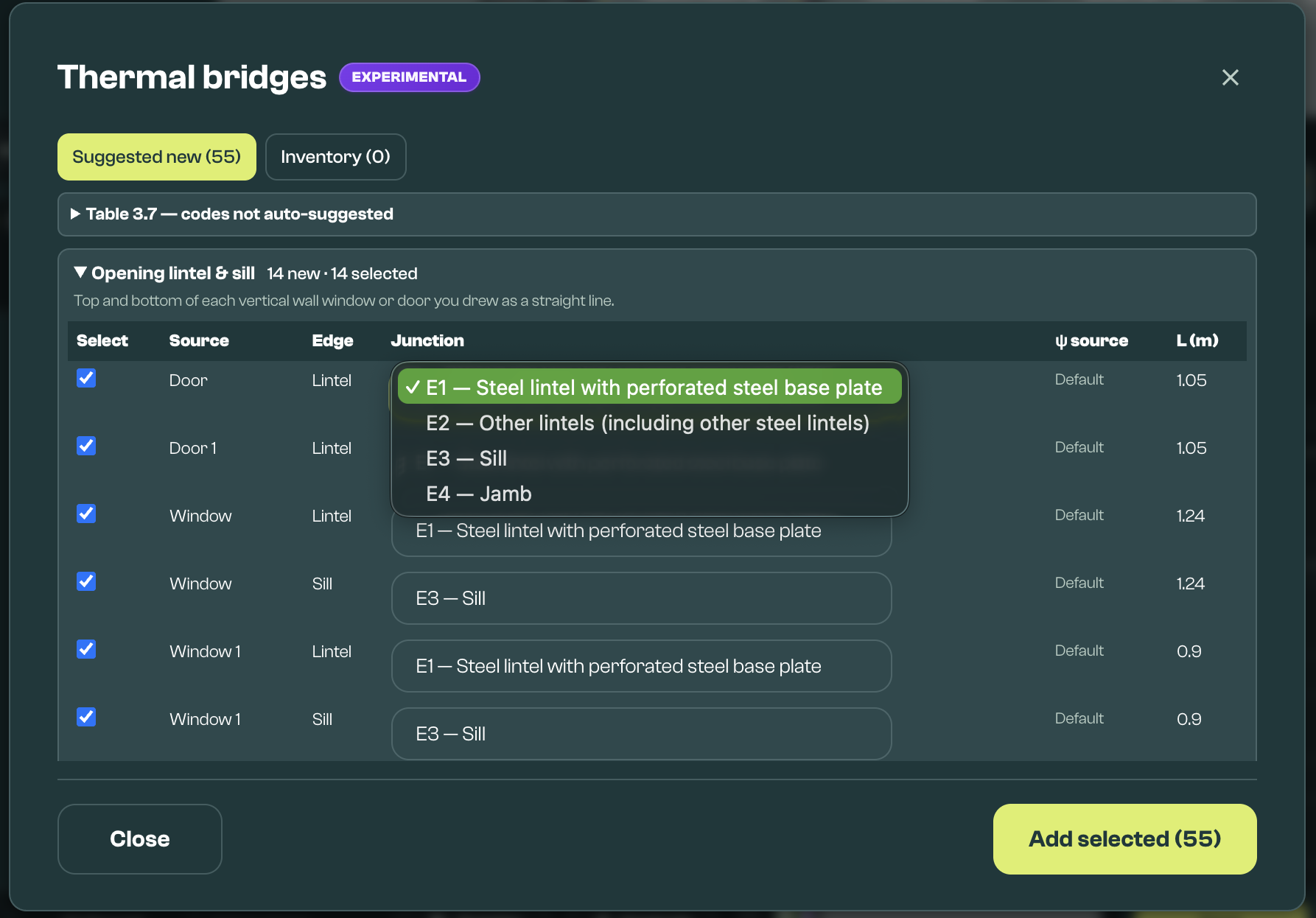
The table above shows where the junction dropdown offers related alternatives on a suggested row rather than creating a separate default row. Use those alternatives when they better match the construction and evidence.
Vulcan also lists Table 3.7 codes that are outside the current auto-suggest set, so users can decide whether evidence supports a manual bridge. The proposer does not create automatic rows for E8, E9, or E23 balcony junctions, E24 inverted eaves, E25 staggered party walls, or R6/R7 flat ceiling junctions. Add these manually where they apply.
Before the rows are shown, Vulcan de-duplicates substantially overlapping suggestions. It also treats a suggestion as a duplicate when an existing thermal bridge uses that junction code, or any alternative code offered for that line, with a midpoint within about 0.12 m, so expected rows may be absent because an existing or higher-precedence row already covers the same physical line. Check Inventory when a junction you expected is not shown under Suggested new.
Use the proposer as a review workflow: propose likely junctions, check the list, add the suggestions you want to use, then validate the result. All new suggestions start ticked, so untick the ones you don't want before Add selected. In Inventory, Remove selected and Remove all in section delete bridges from the model.
Thermal bridge validation checks the drawn thermal bridge elements against the surrounding geometry. It can flag missing links, overlaps, duplicated junctions, or junctions that do not appear to match the nearby modelled elements.
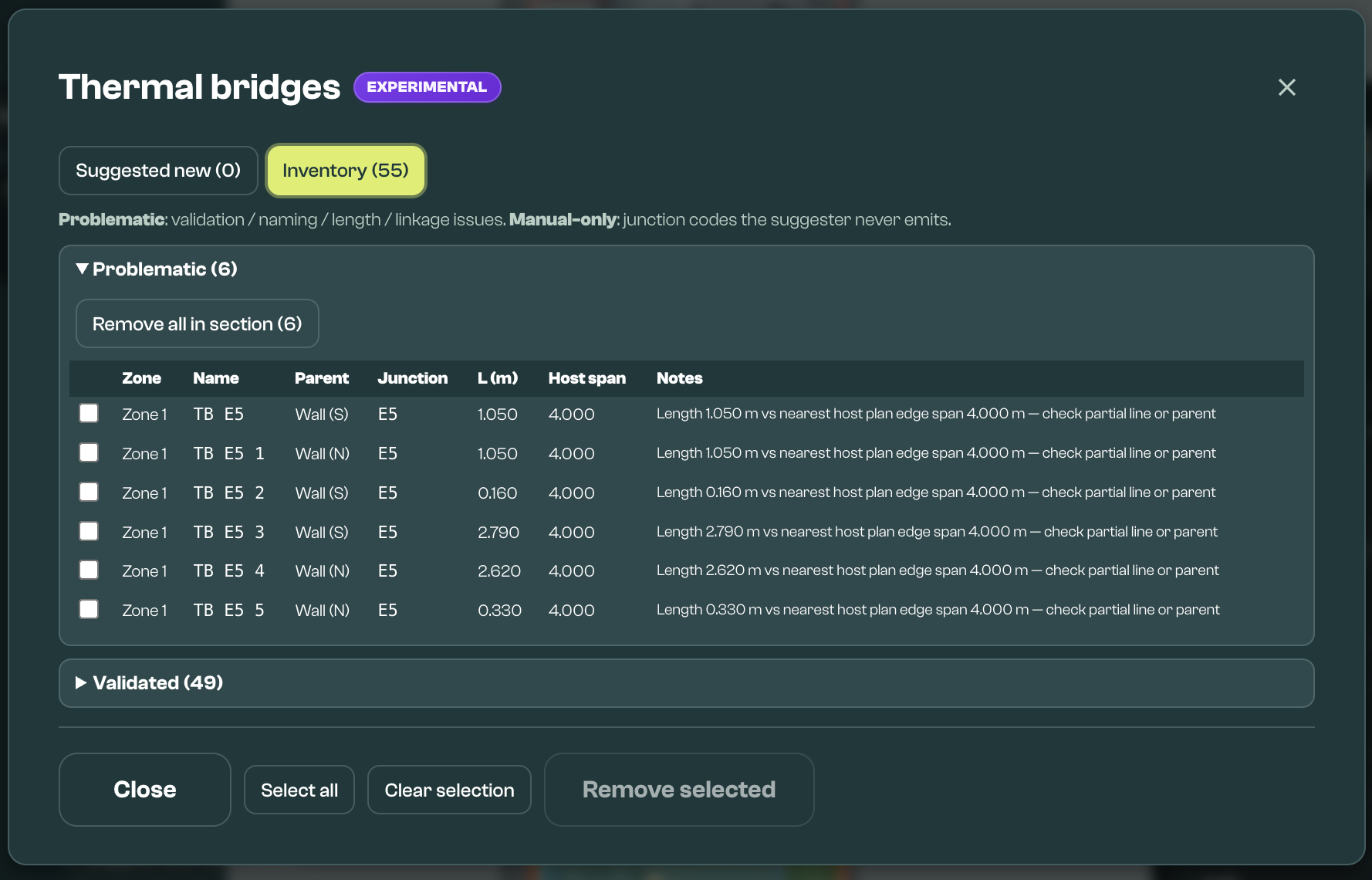
Read the Inventory buckets as follows:
- Problematic: The bridge has a validation, naming, length, linkage, or duplicate/overlap issue that should be checked.
- Manual-only: The bridge's junction code is outside the current auto-suggest set, or it has no junction type. This does not mean the bridge is wrong, but it should be justified from evidence or professional judgement.
- Validated: The bridge has a recognised junction code and the current geometry/linkage checks do not find a problem.
The proposer is based on the drawn geometry. It may not suggest junctions that are not clear from the drawing, are not snapped cleanly, span unusual floor or roof conditions, use details that are not represented by the drawn elements, depend on a product-specific construction, or need evidence outside the model. Add or adjust those thermal bridges using the evidence and psi values you intend to rely on.
Suggested bridges use the configured thermal-bridging value for the selected junction where Vulcan has one, falling back to the default or Table 3.7 value where needed. To change the fallback ψ values Vulcan uses, open Global Settings > Global values > Thermal Bridging. Where enabled, detailed bridge value sources may also be available there. If the dwelling uses an assessed psi value, proprietary detail, Accredited Construction Detail, or another evidence-backed value, check the created thermal bridge element still has the correct junction type and linear thermal transmittance before relying on the result.
Where more than one suggested bridge could describe the same physical junction, choose the one that matches the construction and evidence. Avoid keeping duplicated or overlapping bridge elements for the same junction unless there is a clear reason.
These messages are guidance for checking the model and should be reviewed before calculation. If the model uses simplified thermal bridging, individual thermal bridge elements may not be needed for a first model.