
Prior setup: Before creating dwelling inputs, users need to choose a local folder that will act as their workspace. See Setting up Vulcan Software.
Geometry screen overview
The Geometry section is where you create HEM inputs on a top-down visual canvas. Elements drawn onto this canvas can also be selected and edited. Use mouse and keyboard controls to move or zoom the canvas.
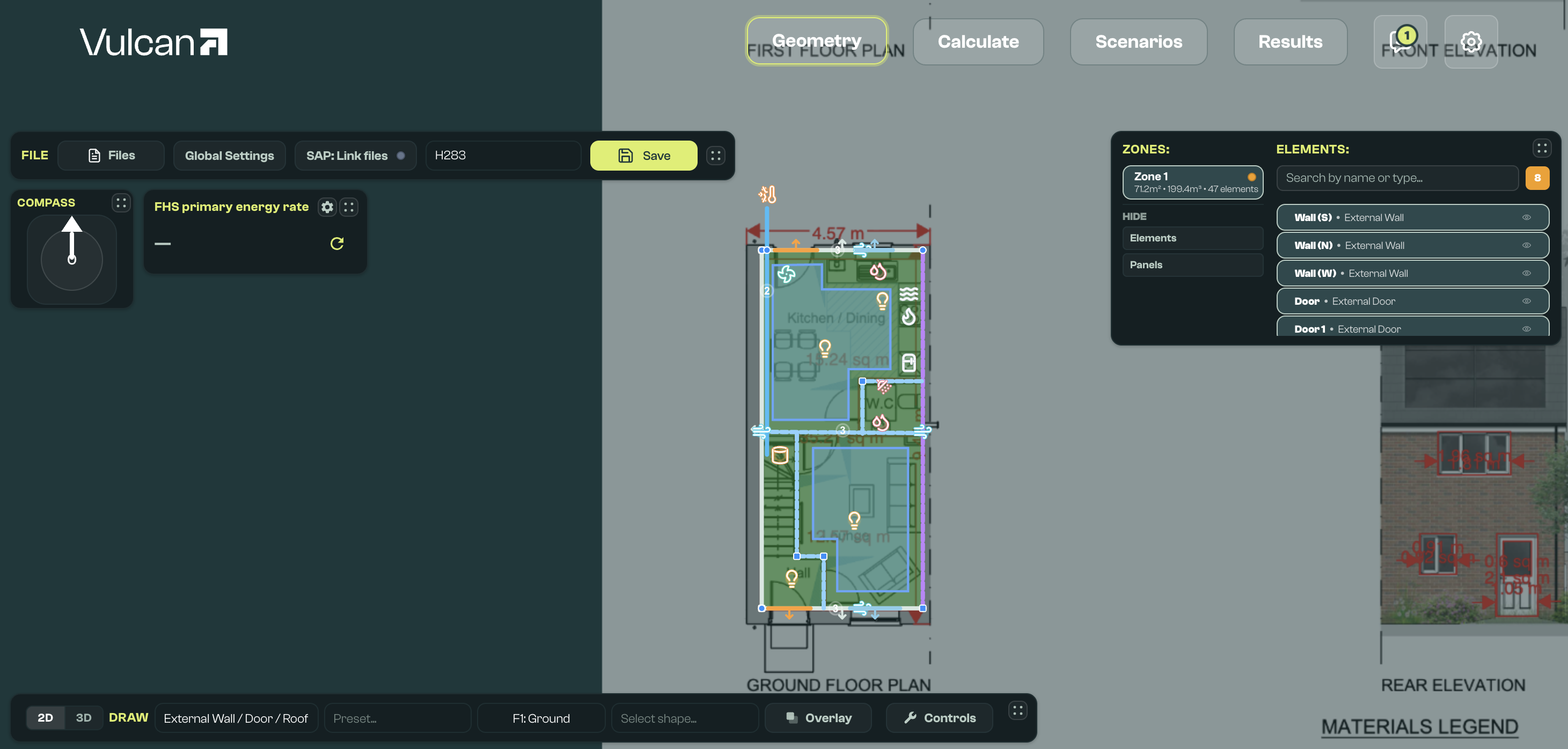
This data is saved into a CSV format 'geometry file', which is merged with a JSON format 'defaults file' when you click Save. The geometry file captures the minimal information needed to describe the geometry of a dwelling, and any differences from a default set of system and fabric properties. This helps minimise the inputs required for a HEM simulation.
Dwelling inputs can be created, edited, and saved with the following menus and panels. Most panels can be dragged to other parts of the canvas, collapsed, or hidden where controls provide that option.
| Menu or panel | Main purpose |
|---|---|
| File Bar | Open, name, save, group, and import model inputs. |
| Files dropdown | Search files, create a new model, and import CAD files. |
| Projects and developments | Group models and manage development context. |
| Global Settings | Choose defaults files, set default assemblies, edit global values, and review values derived from the model. |
| Compass | Set the model orientation offset. |
| Draw toolbar | Choose 2D/3D mode, element type, preset, drawing shape, and drawing controls. |
| Floor picker | Choose the active floor, add or delete floors, and review floor base heights. |
| Thermal bridge proposer | Suggest and validate linear thermal bridge elements from the drawn geometry. |
| Overlay controls | Add, calibrate, move, or remove a plan image or PDF for tracing. |
| Canvas | Draw, select, move, and visually check elements and zones. |
| Editor | Edit a selected element, zone, or multi-element selection. |
| Zone editor | Review a zone and open Space Labeller for room or space footprints. |
| Viewer / Elements panel | Select elements and zones, filter validation issues, and show or hide elements or panels. |
| Systems | Link heat sources, heating, hot water, and ventilation, and see what Vulcan checks. |
| Quick sim | Run a fast preview calculation for the saved model. |
File Bar
The File Bar, typically at the top of the canvas, is used to open, name, and save input files, manage projects, edit global settings, and use SAP data to create or validate inputs.

Files dropdown
Interface to manage geometry input files (saved in the user workspace under input/base_models):
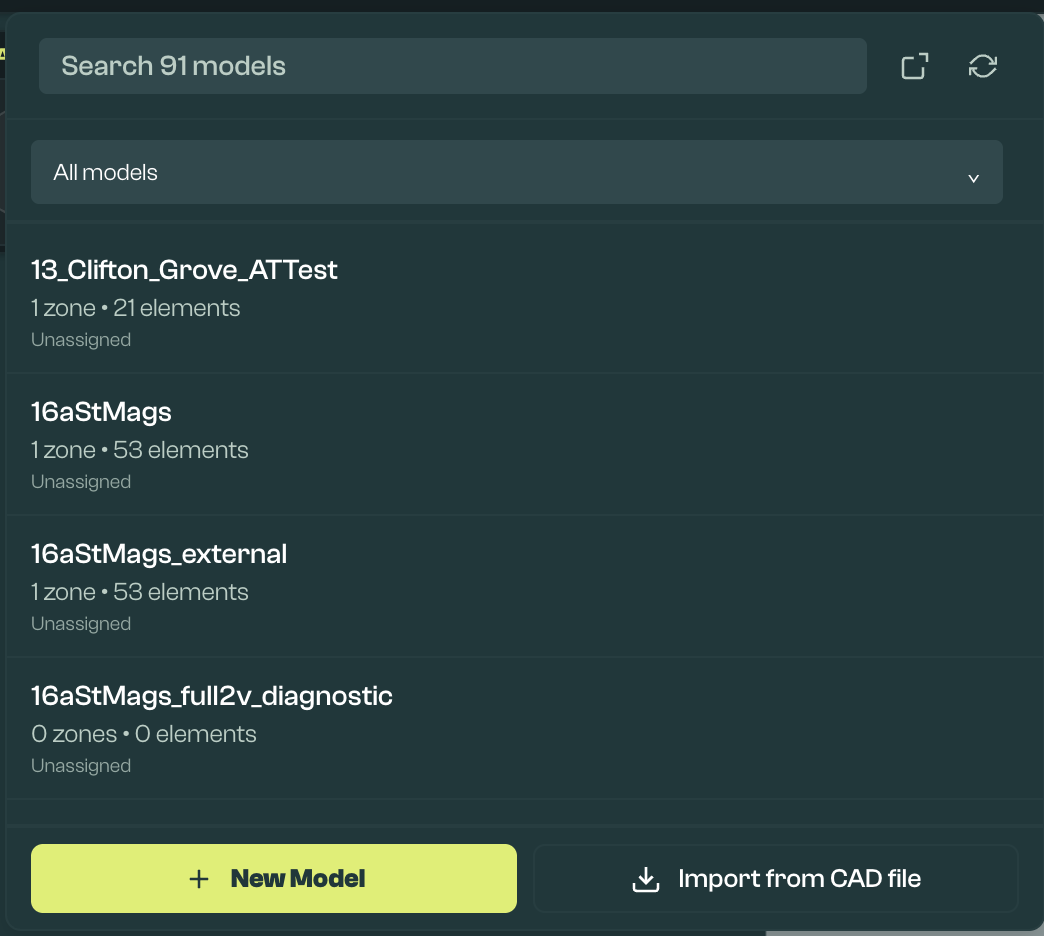
Open the file dropdown with the Files button in the File Bar. Use it to:
- Search through all files by name.
- Open the workspace that contains the files.
- Refresh the view of files in this workspace, for example after adding new files.
- Delete a file. The delete action is visible when hovering over a file.
- New Model: Create a new file.
- Import from CAD file: Import IFC4 files exported from CAD tools.
Projects and developments
The files dropdown also supports project grouping. Projects need Vulcan Pro. Open the Files dropdown and use the project panel to create, select, rename, or delete projects.
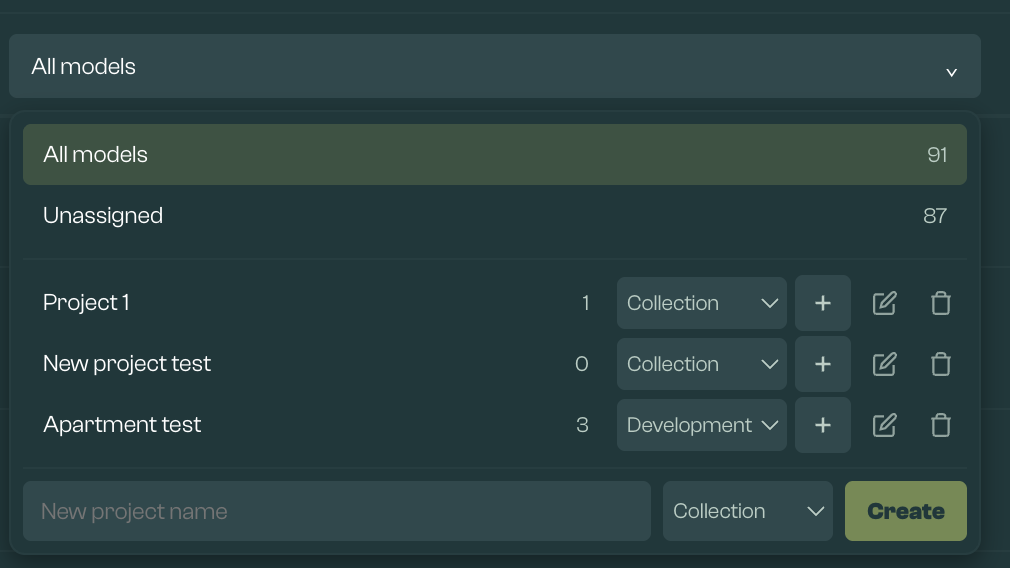
Projects are saved in the workspace in input/projects.json and can be used to filter the model list. Use the filter to show all files, unassigned files, or the files in a selected project.
There are two project types:
- Collection: A simple group of related models.
- Development: A group of related models where Vulcan can show context from sibling models.
A model must be saved before it can be added to or removed from a project. Deleting a project removes the grouping, not the model files.
When a Development is selected, other saved models in that Development can appear as context while editing. This is useful for terraces, apartment blocks, and plot groups where nearby dwellings affect shading or context.
Shared context shading can also be written back to sibling models when the model is saved. This helps keep repeated development context consistent. It updates the shared context items that Vulcan can match, rather than every element in every model.
If a new model is created while working in a selected Development, saving it can add it to that Development. This keeps the project filter and development context aligned with the saved model.
Project actions can also be used to start batch workflows for saved geometry models in the selected project.
File name field
Edit the name of the currently open file. The file must be renamed from the default name (draft_model) before it can be saved. Use a distinctive, searchable name.
Saving a file under a new name creates a new file and keeps the previous one. If another model already uses the name, Vulcan asks before overwriting it. If the model has SAP data, its SAP folder is copied to the new name, so the previous model keeps its SAP link. If a SAP folder with the new name already exists, the new model keeps using the previous model's SAP folder.
Save button
This button saves the current contents of the canvas into a CSV format geometry file. This can be found in your selected workspace folder, under input/base_models.
This is required before you can simulate the dwelling or submit it to ECaaS, and is important to ensure that updates made are not lost. The shortcut Ctrl + S can also be used to save.
Save status and build status are shown separately:
- Save success: The geometry CSV has been written to your workspace.
- Build errors: The CSV saved, but Vulcan could not create or validate the HEM input JSON. A Build Error button will show the issues to fix. These are usually missing or inconsistent fields rather than a failure to save your drawing.
- Save errors: The CSV itself could not be written. Clicking the warning symbol reveals more information about the cause.
- Validation failed at last save: The model is hidden from Scenarios until it saves without validation errors.
Import SAP Data
SAP data in PDF Worksheet or XML format can be imported with Upload to support creation and validation of HEM building elements within Vulcan. Once a SAP PDF or XML is used for one input file, it will be available to link to any other file with Link existing.
Once a file is uploaded, the raw file (PDF or XML) or the extracted data (JSON) can be reviewed. The selected file can also be removed (Clear) or replaced by another file (Replace).
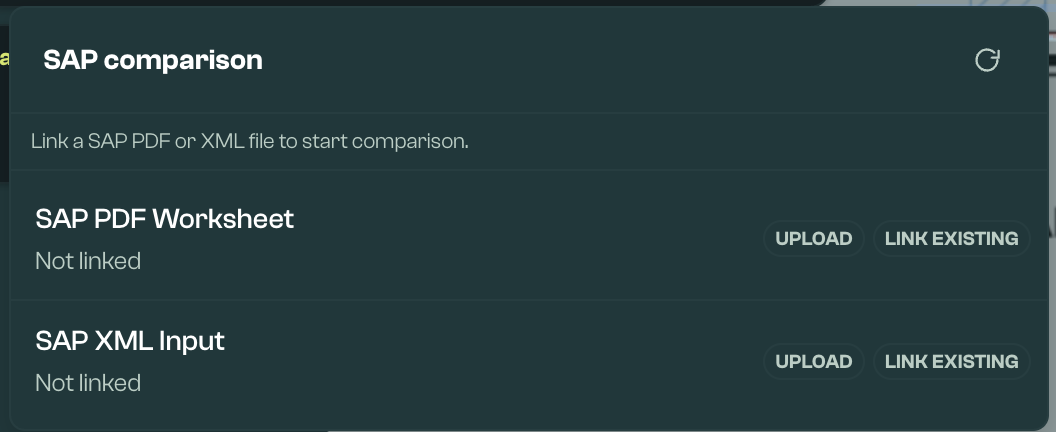
Vulcan stores SAP files and extracted data in the workspace. By default this is under input/sap/<model name>, unless the model has a specific SAP directory recorded. Extracted data is cached, so unchanged source files do not need to be re-extracted on every refresh.
Under Advanced (JSON), the pipeline to compare extracted data to the current HEM inputs is visible:
- Merged JSON represents the combination of the PDF and XML sources.
- Mapping JSON links the building elements in a SAP XML to the HEM input file. Manual mappings and blocked mappings are preserved when the comparison is refreshed.
- Diff JSON represents the difference between the current HEM input file and the SAP data described in the Merged JSON and linked by the Mapping JSON.
Validation provided by the SAP file is visible as a blue validation badge in the Elements Viewer, and as blue dots or chips within the Elements Editor. Validation can indicate that a HEM element contains a value inconsistent with the SAP files, or that a specific named element in the SAP file is missing from the HEM file. Missing elements can then be drawn or created with properties aligned to the SAP file.
If SAP differences look unexpected, check that the correct SAP file is linked, refresh the comparison after saving the model, and review the Mapping JSON for element names that could not be matched automatically. Duplicate or renamed HEM elements may need manual mapping before the diff reflects the intended comparison.
Global Settings
The Global Settings button opens the Global Settings menu. If there is a red validation dot on this button, there is likely an issue, for example a missing defaults file or required HEM value. This can be resolved within the menu.
Global Settings has two main tabs:
- Defaults: Choose the defaults file used when the geometry CSV is merged into a complete HEM JSON input. The selected defaults file is highlighted.
- Global values: Choose the HEM model version and edit values that apply across the model.
Defaults tab
The Defaults tab controls the defaults file and default assemblies used when geometry is turned into a full HEM input.
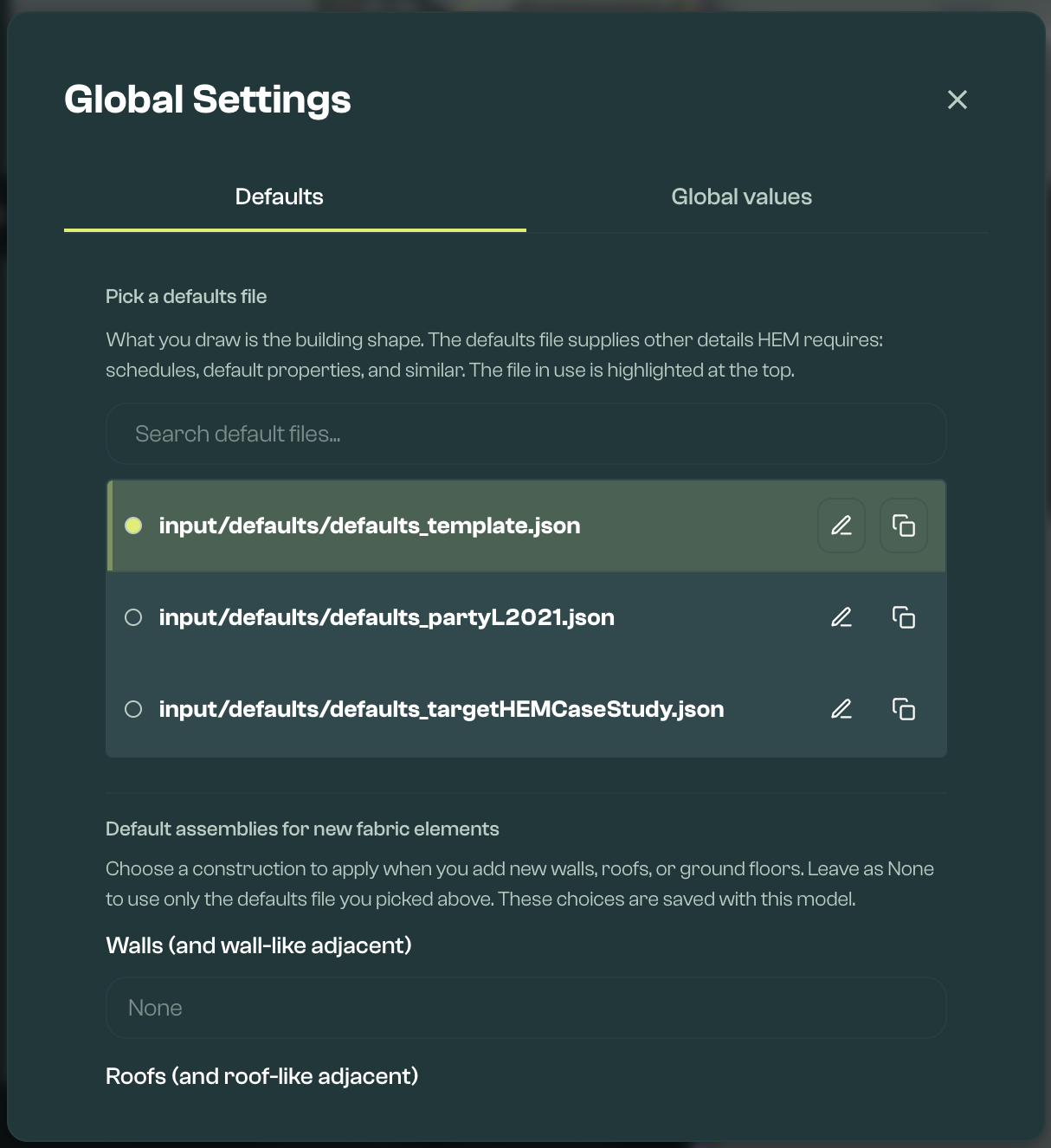
Default files are HEM input files in JSON format. They provide the foundation that geometry files merge into. A sample default file is part of the Sample Parameter Library, and stored in the user's workspace under input/defaults.
The selected defaults file must be identical to the defaults pinned for the model's HEM model version. A different or edited file makes Save report a build error, so Edit is hidden for these models, and a copy can't be used either. Put model-specific values in the model instead, using element fields or Advanced fields, or vary them with Scenarios snippets.
The Defaults tab also lets you choose default wall, roof, and ground-floor assemblies for newly drawn fabric elements. These defaults are saved with the model and used when new matching fabric elements are drawn. Changing a default assembly does not rewrite existing fabric elements, so review existing elements separately where needed.
Global values tab
The Global values tab contains values that apply across the model.
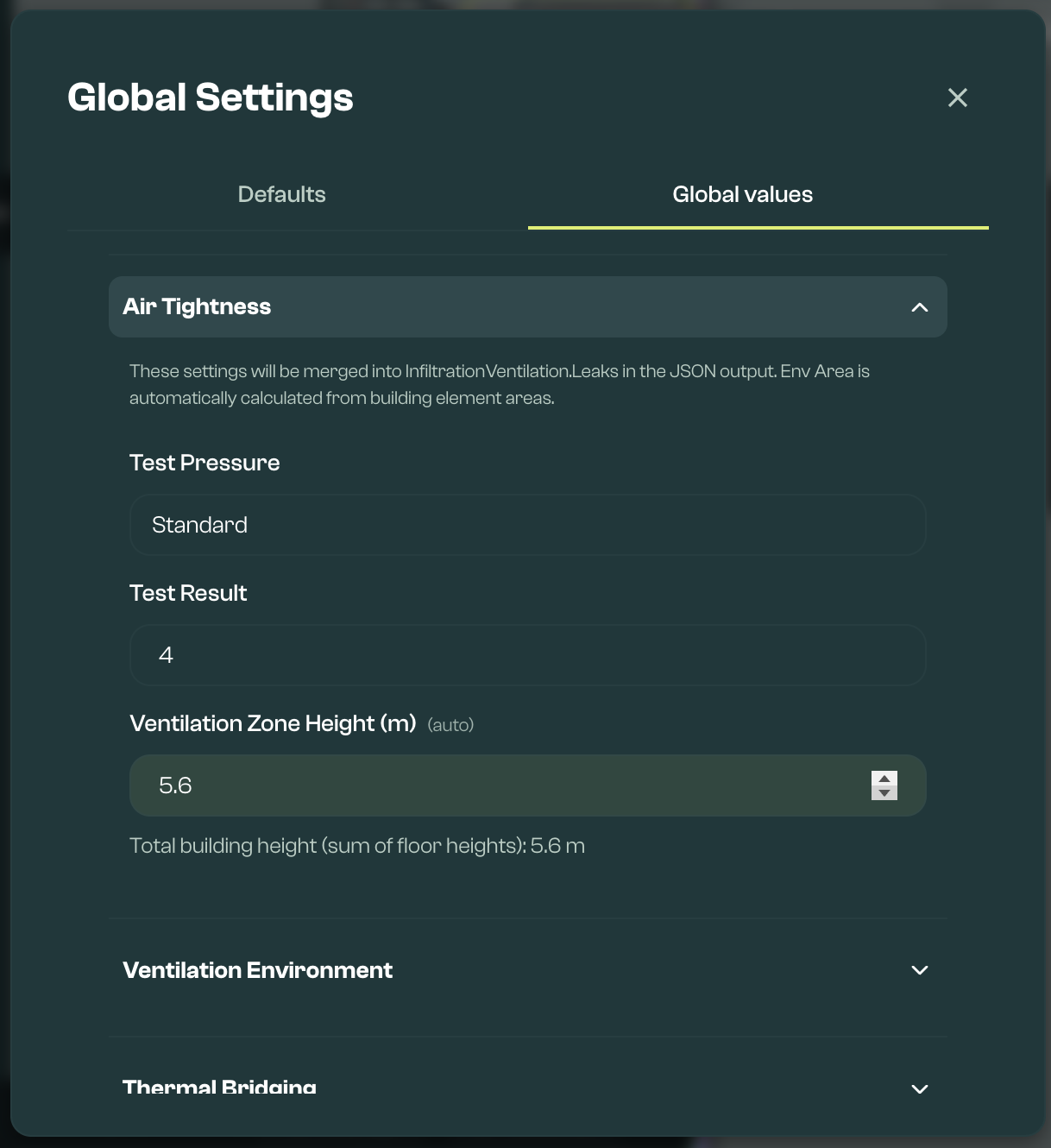
The Global values tab includes:
- Dwelling Details: Shows compliance inputs such as Part G, room counts, hot-tapped rooms, ground floor area, heating control type, and related assumptions. Room counts should come from labelled spaces where possible, rather than being typed directly. Some other values are derived from the model and can be overridden where needed.
- Air Tightness: Records the test pressure type and test result.
- Ventilation Environment: Records location settings that affect ventilation, including shield class, terrain class, altitude, ventilation zone height and base height (derived from the drawn geometry, with manual overrides), and noise nuisance.
- Thermal Bridging: Sets the fallback psi (ψ) values used for suggested linear bridges, and detailed bridge value sources where enabled. Add individual bridges with the Draw toolbar, or tick Simplified Thermal Bridging in the Zone editor. A zone with neither has no junction heat loss, and Vulcan flags it.
HEM model version
The HEM model version selector at the top of the Global values tab chooses the HEM engine and FHS wrapper version used to prepare and calculate the model. Rust HEM:FHS 1.0.0a7 is the default, and the only option on the free plan. Python HEM:FHS 1.0.0a8 and Python HEM:FHS 1.0.0a9 need Vulcan Pro.
Saving the model records the selected version in the geometry CSV (TargetBundleId). Save checks the model against that version's schema; FHS checks run when the model is calculated. The files for a version download automatically when you calculate, or can be downloaded in advance with Download now.
Models without a recorded version open with Rust HEM:FHS 1.0.0a7 selected. Models saved before the version was recorded must be opened and saved again, even if nothing has changed, before they can run in Quick sim or Scenarios. Changing the version does not update Batch Configs that were already saved; open and save them again.
ECaaS submissions currently accept only Rust HEM:FHS 1.0.0a7 models. Use Scenarios to run models on other versions.
Auto-updated values in Global Settings
Some Global Settings values can update from the model, so users do not need to maintain the same information in multiple places.
| Area | What can update | What to check |
|---|---|---|
| Space labels | Room counts can be synced from labelled spaces. In the Zone editor, living area, rest-of-dwelling area, and treated floor area can also be derived from them. | Refresh footprints after editing walls, then check room types. Use Use space labels where the room counts should match the labelled spaces. |
| Geometry dimensions | Ground-floor area, building length, and building width can be derived from the drawn model. | Check unusual shapes, split levels, and incomplete floors before calculation. |
| Airtightness and ventilation | Ventilation zone height and ventilation base height can be derived from drawn fabric and floor heights. | Check these values where storeys, adjacent spaces, or base heights are unusual. |
Manual overrides work slightly differently by field. Geometry-derived fields such as ground-floor area, building length, building width, ventilation height, and ventilation base height stay manually set until they are reset. Room-count fields can be typed manually, but if they differ from labelled spaces Vulcan marks them as a manual override and shows Use space labels to sync them back.
Evidence can be linked to fields in Global Settings where supporting evidence is needed.
FHS validation is currently always on. It checks the values that can be exported to the HEM:FHS wrapper.
Compass
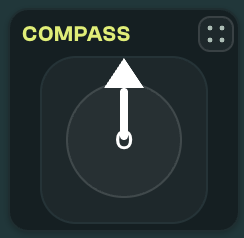
The Compass sets the global orientation, which applies an offset to the orientation value of all dwelling elements. Edit it by dragging the arrow, or by clicking the central number and typing the offset. Note that North = 0; East = 90; South = 180; West = 270.
Draw toolbar
The Draw toolbar is used to choose dwelling elements to draw, and how and where they are drawn. Drawn elements can be seen in the Viewer, and properties of selected elements edited in the Editor.

2D/3D toggle
This switches between 2D and 3D. Drawing new elements is done in 2D. Existing elements can be edited in either mode: in 3D, a selected element shows drag handles for its vertices, elevation, and pitch where the shape supports them, with a live readout while dragging. Windows and doors stay on their host line while dragged. Some detailed editing actions still need 2D.
Element Selection
Choose which element to draw from the element type picker. Elements are grouped into sections, with a short description and diagram for each option.
Building Fabric
- External surface: External wall, roof, or door.
- Window / rooflight: External window or rooflight.
- Ground floor: Ground-contact floor.
- Internal element: Internal walls, floors, and ceilings next to conditioned space.
- Unheated boundary: Walls, floors, or ceilings next to an unheated space, such as a loft, garage, or void, including exposed floors.
- Party wall: Walls shared with another dwelling only, not floors or ceilings.
Thermal Bridges
- Linear bridge: Line heat-loss junction.
- Point bridge: Point heat-loss junction.
Shading
- Window shading: Overhangs, reveals, and fins. Must be assigned to a window.
- External shading: Nearby buildings or obstructions.
Ventilation
- Ventilation system: Whole-dwelling, MVHR, or room system.
- Ductwork: Supply, extract, intake, or exhaust runs. Must be assigned to an MVHR unit.
- MVHR terminal: MVHR intake or exhaust terminal.
- Air vent: Passive background or purge opening. Can be assigned to a parent to inherit pitch and orientation.
Heating & Hot Water
- Plant system: Heating, hot water, and cooling presets, including Product Characteristics Database product selection where available.
- Heat emitter: Radiator, underfloor heating, or fan coil.
- Hot water outlet: Tap, shower, bath, or outlet.
- Primary pipework: Connects the heat source and hot water cylinder.
- Combustion appliance: Legacy appliance and flue.
Lighting & Appliances
- Lighting: Lighting points and controls.
- Appliance: Electric appliance load.
Solar & Battery
- Solar panel: PV array or collector.
- Battery storage: Electrical storage.
For FHS models, add the heat source and hot water source as Plant system elements; the defaults file only supplies their field defaults. See Systems for how heat sources, heating, hot water, and ventilation link together.
Combustion appliance isn't offered in the element picker.
For ventilation, distinguish background ventilation from mechanical ventilation. Use Air vent for background vents that belong on a wall or window. Use Ventilation system for MEV or MVHR units, Ductwork for ducts that belong to an MVHR unit, and MVHR terminal for MVHR intake and exhaust positions. For MVHR, FHS validation expects ductwork linked back to the MVHR unit. Select the unit to review and link its ductwork and terminals. The ventilation rules are listed under Rules Vulcan checks. Part F ventilation checks use dwelling details, space labels, background vents, extract inputs, and mechanical ventilation inputs, so fix room labels and parent links before treating the warning as a system sizing issue.
Party floors and ceilings:
- Draw an Internal element as a horizontal polygon, select it, then use the Party floor or Party ceiling checkbox in the Editor.
- Use Party wall for party walls only, not floors or ceilings.
- When using the assembly calculator, Vulcan writes half-construction resistance and areal heat capacity, then recalculates U-value from that half construction.
- When typing advanced fields manually, enter half-construction values: U-value from the half build-up, half areal heat capacity, the matching mass class, and half construction R where construction R is used. See Fabric Calculators Reference for the detailed convention.
Thermal bridge proposer and validation
Vulcan can suggest likely linear thermal bridges from the drawn geometry. To open the proposer in 2D view, choose Linear bridge or Point bridge in the Draw toolbar, then click Suggest thermal bridges.

The proposer is deliberately geometry-based. It suggests linear Table 3.7 junctions only where the drawn elements provide enough information for the junction location and length:
| Geometry Vulcan looks for | Suggested junctions and choices |
|---|---|
| Vertical wall windows and external doors drawn as straight wall openings | Lintel, sill, and jamb rows. Defaults are E1, E3, and E4. Use the junction dropdown to choose the correct opening code from E1-E4, for example E2 for other lintels. If the opening foot is at a floor slab, Vulcan suggests the wall-floor row instead of a separate sill. |
| Roof windows and rooflights with a non-vertical pitch | R1 head, R2 sill, two R3 jambs, and an R11 kerb/upstand row along the lower edge. Use R2 for a sill detail or R11 for a kerb/upstand; do not keep both for the same physical line unless there are genuinely separate details. |
| External walls linked to ground or intermediate floor slabs | Continuous E5 ground wall-floor rows and E6 intermediate wall-floor rows. Vulcan subtracts door/window foot spans already suggested on the same wall line. Ground rows can be changed to E19 where the inverted ground-floor junction is the right detail. |
| Ground elements with a basement floor type | E22 along each edge of a heated or unheated basement floor polygon. |
| External wall plan corners | E16 normal corners and E17 re-entrant/inverted corners. Endpoints very close together are merged, but T-junctions, loose wall stubs, internal walls, and pitched/roof-like walls are not treated as external-corner rows. |
| Flat roof deck edges | E14 flat roof by default; choose E15 where the same line is a flat roof with parapet. |
| Sloped roof edges | E10/E11 eaves on the first or drawn low edge, E12/E13 gables on suitable perpendicular plan edges, and R4 ridge rows on warm roof polygons where a non-first edge is nearly parallel to the eaves. R5 is available in the dropdown on emitted ridge rows. Cold unheated pitched roofs use the ceiling-level E10/E12 eaves/gable codes and do not emit ridge rows. |
| Sloped roof edges meeting adjacent vertical walls or room-in-roof walls | R8/R9 where the roof edge and adjacent wall line are plan-coincident and have enough vertical overlap. Warm roofs default to R8; cold unheated pitched roofs default to R9. |
| Dormer walls and dormer roof planes linked to a host roof | R8/R9 for dormer wall to host roof lines, and R10 for warm dormer roof edges tying back into a warm host roof where the edge is not already an eaves, gable, ridge, or roof-window edge. |
| Party floors, party walls, and adjacent unheated floors | E7 for a party floor or party ceiling meeting an external wall; E18 for a vertical party wall meeting an external wall; P1/P6 for party wall to ground floor; P2/P3 for party wall to intermediate conditioned floor; P4/P5 for party wall to pitched roof; P4 for party wall to flat roof; E20/E21 for an unheated exposed floor meeting an external wall. Use the dropdown to choose the normal/inverted or ceiling/rafter variant where the default does not match the evidence. |
The tool has two views: Suggested new and Inventory. Suggested new shows bridge rows Vulcan can add from the current geometry. Inventory reviews existing linear thermal bridges as problematic, manual-only, or validated.
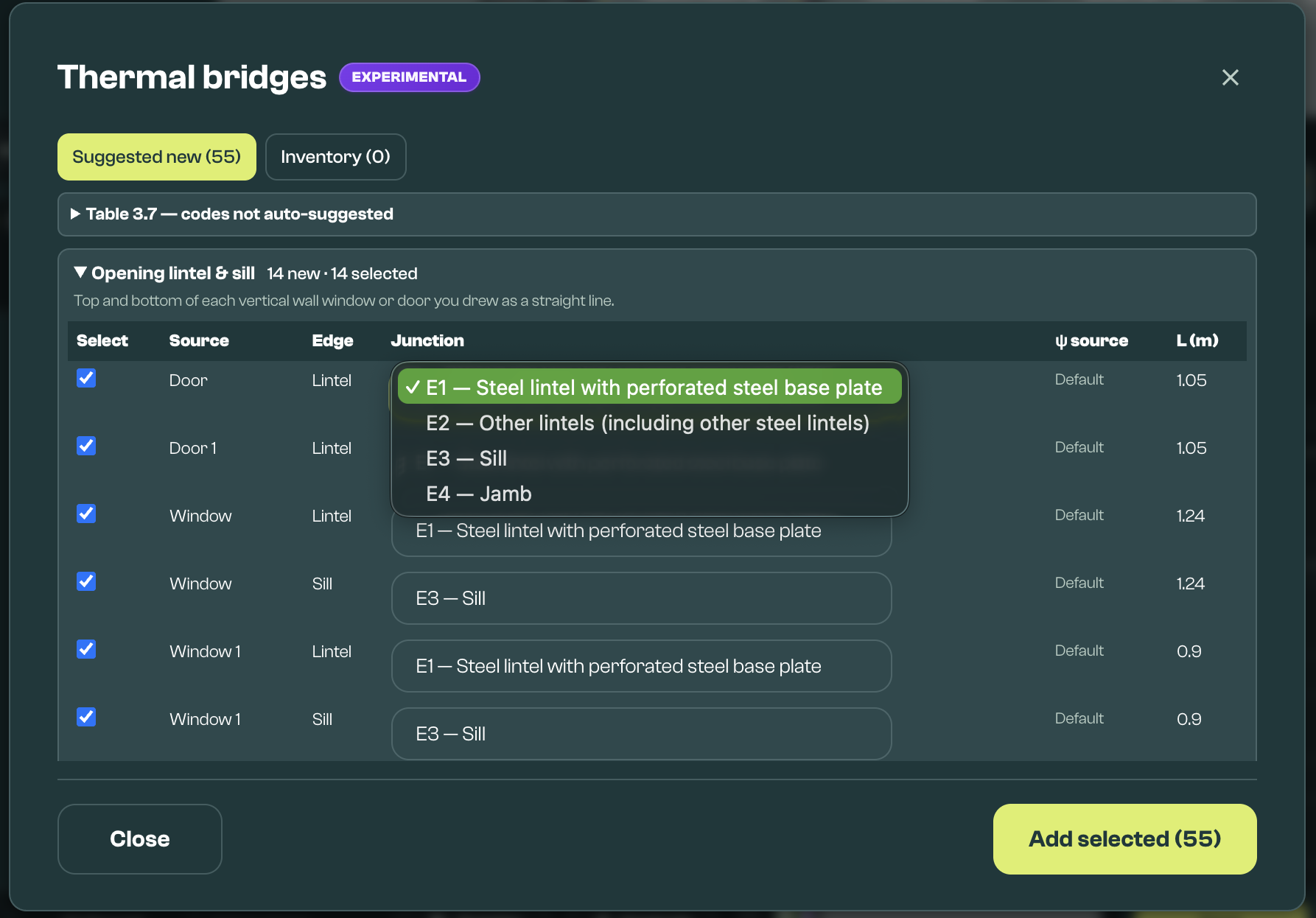
The table above shows where the junction dropdown offers related alternatives on a suggested row rather than creating a separate default row. Use those alternatives when they better match the construction and evidence.
Vulcan also lists Table 3.7 codes that are outside the current auto-suggest set, so users can decide whether evidence supports a manual bridge. The proposer does not create automatic rows for E8, E9, or E23 balcony junctions, E24 inverted eaves, E25 staggered party walls, or R6/R7 flat ceiling junctions. Add these manually where they apply.
Before the rows are shown, Vulcan de-duplicates substantially overlapping suggestions. It also treats a suggestion as a duplicate when an existing thermal bridge uses that junction code, or any alternative code offered for that line, with a midpoint within about 0.12 m, so expected rows may be absent because an existing or higher-precedence row already covers the same physical line. Check Inventory when a junction you expected is not shown under Suggested new.
Use the proposer as a review workflow: propose likely junctions, check the list, add the suggestions you want to use, then validate the result. All new suggestions start ticked, so untick the ones you don't want before Add selected. In Inventory, Remove selected and Remove all in section delete bridges from the model.
Thermal bridge validation checks the drawn thermal bridge elements against the surrounding geometry. It can flag missing links, overlaps, duplicated junctions, or junctions that do not appear to match the nearby modelled elements.
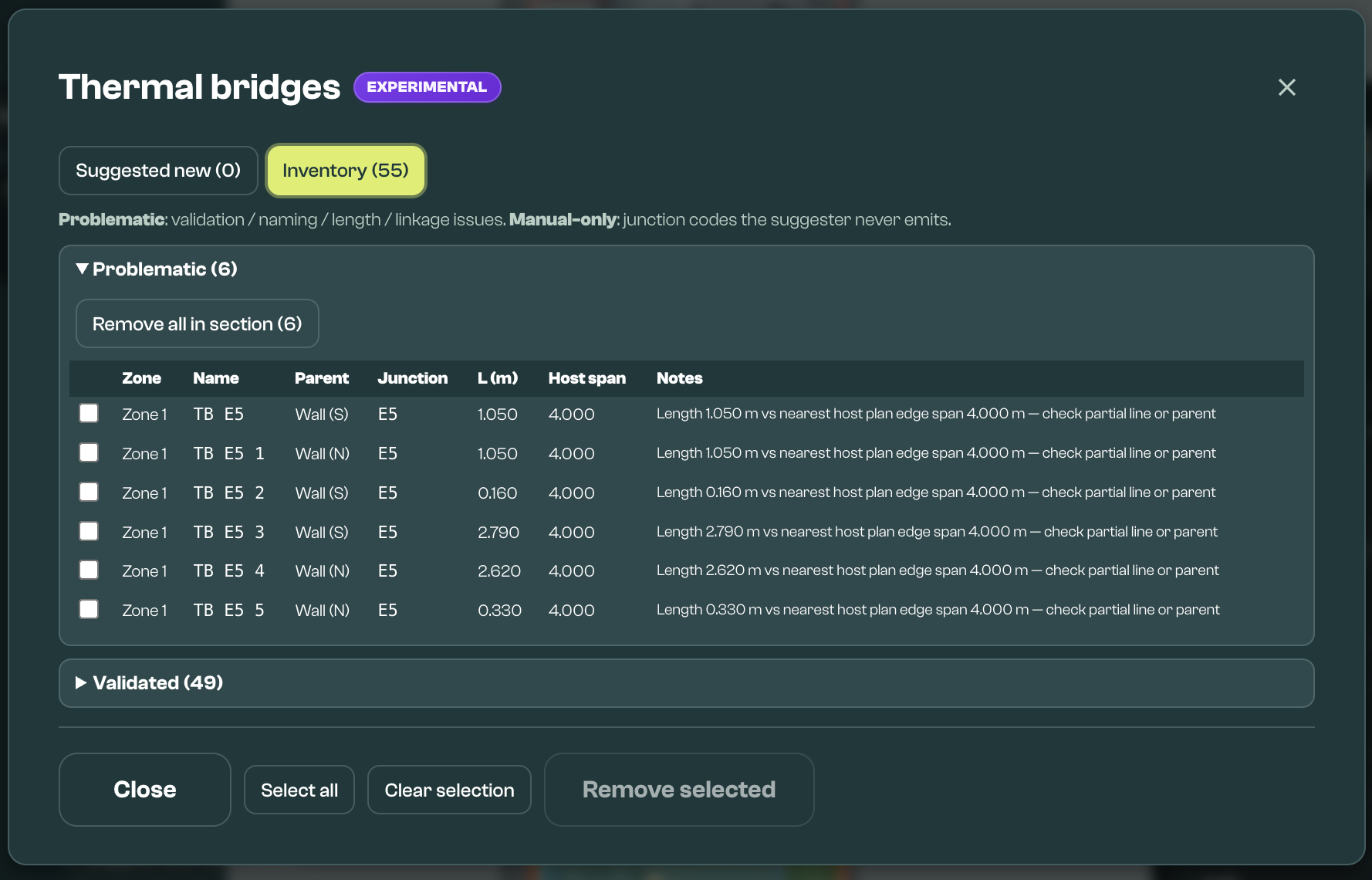
Read the Inventory buckets as follows:
- Problematic: The bridge has a validation, naming, length, linkage, or duplicate/overlap issue that should be checked.
- Manual-only: The bridge's junction code is outside the current auto-suggest set, or it has no junction type. This does not mean the bridge is wrong, but it should be justified from evidence or professional judgement.
- Validated: The bridge has a recognised junction code and the current geometry/linkage checks do not find a problem.
The proposer is based on the drawn geometry. It may not suggest junctions that are not clear from the drawing, are not snapped cleanly, span unusual floor or roof conditions, use details that are not represented by the drawn elements, depend on a product-specific construction, or need evidence outside the model. Add or adjust those thermal bridges using the evidence and psi values you intend to rely on.
Suggested bridges use the configured thermal-bridging value for the selected junction where Vulcan has one, falling back to the default or Table 3.7 value where needed. To change the fallback ψ values Vulcan uses, open Global Settings > Global values > Thermal Bridging. Where enabled, detailed bridge value sources may also be available there. If the dwelling uses an assessed psi value, proprietary detail, Accredited Construction Detail, or another evidence-backed value, check the created thermal bridge element still has the correct junction type and linear thermal transmittance before relying on the result.
Where more than one suggested bridge could describe the same physical junction, choose the one that matches the construction and evidence. Avoid keeping duplicated or overlapping bridge elements for the same junction unless there is a clear reason.
These messages are guidance for checking the model and should be reviewed before calculation. If the model uses simplified thermal bridging, individual thermal bridge elements may not be needed for a first model.
Preset
For External surface, Window / rooflight, and Solar panel, use the Preset... dropdown to select a saved element of that type, where presets exist. Presets can be saved from existing elements using the Element Editor menu.
Floor picker and floor heights
Use the floor picker in the Draw toolbar to choose the active floor before drawing. Floors use FHS conventions: F1 is the ground floor, F2 is the floor above, and F0 is the first basement floor.
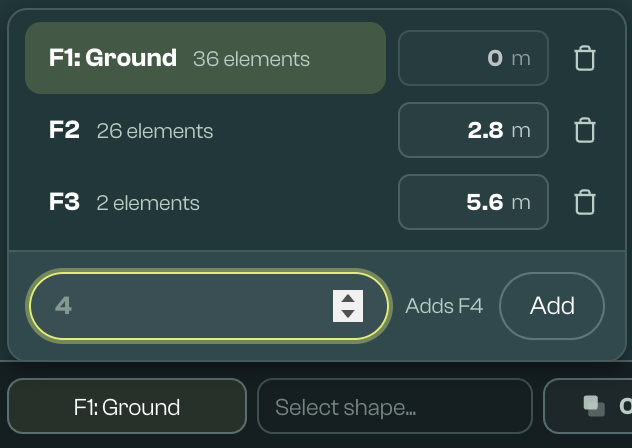
From the floor picker you can:
- switch the active floor
- add a floor by typing the FHS floor number
- delete a floor, which also deletes elements on that floor
- review or edit the floor base height
Floor base height is the elevation of that floor's slab in metres. Vulcan derives it from the floors below and their drawn wall heights, or from elements already on that floor. Basement floors use negative base heights. The picker shows — when it can't work out a base.
Typing a base height pins it as a manual override, including for F1. There is no reset: a typed base stays until you type a different value. A warning icon with "Floor geometry may overlap or separate" means floors may overlap or leave a gap; check the base heights.
For opaque and transparent elements, base_height stores the element's absolute height above ground. This means an upper-floor window can have a base_height greater than its sill height above that floor. When an element is moved between floors, Vulcan moves its vertices to the new floor and tries to preserve its height above the old floor. For example, a window with a 0.9 m sill stays 0.9 m above the new floor. Related window heights update with it.
Changing a floor height can update stored base heights on affected elements so they keep the same offset from their floor. Elements without an authored base height may not change. Validation can warn when a base_height falls below the selected floor slab or above the storey ceiling. Thermal bridge linear elements are different: their floor assignment changes, but their physical line heights are preserved.
Shape Selection
Choose how the element is represented with a top-down view. After choosing a Shape, the next click on the canvas will start drawing. Shapes can also be quickly selected by using the keyboard shortcut shown, or de-selected with Escape. The Shapes available will depend on the Element Selection.
- Line: A vertical panel. The arrow indicates the externally facing surface of the element. Shortcut:
[ L ]. - Polygon: A flat plane. Click the original point to close. Shortcut:
[ P ]. - Slope: An angled plane. The first two points are the lowest edge of the slope, and the arrow indicates the externally facing direction of this edge. Shortcut:
[ J ]. - Room: Vertical panels enclosing a polygon. The arrow indicates the externally facing surface of the room walls. Shortcut:
[ K ]. - Orthogonal Room: A rectangular room. Click and drag to place, then tweak dimensions in the post-room-creation menu. Shortcut:
[ Q ]. - Dormer: Add dormer geometry to a roof where available, then configure the dormer as Mono-pitch, Gable-front, or Hip. Only available for External surface elements.
- Line modes: Linear bridge, Primary pipework, and Ductwork can be drawn as a Plan Line
[ L ], Vertical Line[ V ], or Slope Line[ S ]. - Point: Click to place. Shortcut:
[ O ].
Hold Shift while drawing to force orthogonal snapping. Hold Alt/Option while placing repeated elements, especially lines, if you want to keep drawing the same shape.
Overlay
Use Overlay controls to select an overlay file (PNG, JPEG, or PDF) that can be traced over in the canvas. This can make it faster to create inputs from a floor plan.

When a model has more than one floor, check the selected floor before choosing or calibrating an overlay. Each floor can remember its own overlay position, which helps align plan images so floors can be drawn on top of each other. Where available, moving an overlay customises the active floor relative to the inherited position, resetting returns to the inherited position, and deleting removes the overlay from every floor.
- Select overlay file: Choose an image as an overlay. Overlay files are saved in your workspace. PDF sources are retained separately and the selected page is converted to a PNG overlay. Where the model is linked to a lodgement, Vulcan can also attach overlay files as internal QA evidence.
- Calibrate / Recalibrate: Place two points onto the canvas, then define the distance between them. This is automatically prompted on loading a new image.
- Replace: Choose another image as an overlay.
- Delete: Remove the overlay from every floor.
- Move: Drag the image around the canvas. A moved floor shows Customised; use Reset to match floor below to undo it.
- Opacity: Change the visual transparency of the image.
Controls
The canvas controls panel contains shortcuts and drawing toggles:
Mouse and Keyboard Controls: Reiterates controls above and provides other options:
[ S ]when hovering over the edge of a polygon to add a vertex[ + ]or[ - ]to zoom in or out, also supported by touchpad[ Ctrl + S ]to save the current inputs[ Ctrl + Z ]to undo the last draw[ Ctrl + Y ]or[ Ctrl + Shift + Z ]to redo[ Delete ]to delete an element or selection[ Escape ]to clear the drawing tool or current selection- Click and drag to select multiple elements to edit, duplicate, move, or delete as a group
Snap Options, Label Visibility, and Display: Snap to Parent, Snap to Corners, Snap to Right Angles, and Vertex Snap Mode control how drawn or adjusted elements snap. Label Visibility chooses when element labels show, and Display > Show line dimensions shows line lengths. Hold Shift while drawing to force orthogonal snapping. Snapped vertices can stay joined when moved. Use these controls when walls should meet cleanly, openings should sit on a host wall, or polygon corners should stay connected.
Canvas
Use the canvas to view elements, select them for editing, and move around the model. Panels can be dragged around the canvas, collapsed, or hidden where controls provide that option, so you can create more drawing space.
Editor
Single element editor
Use this editor to edit one element at a time.
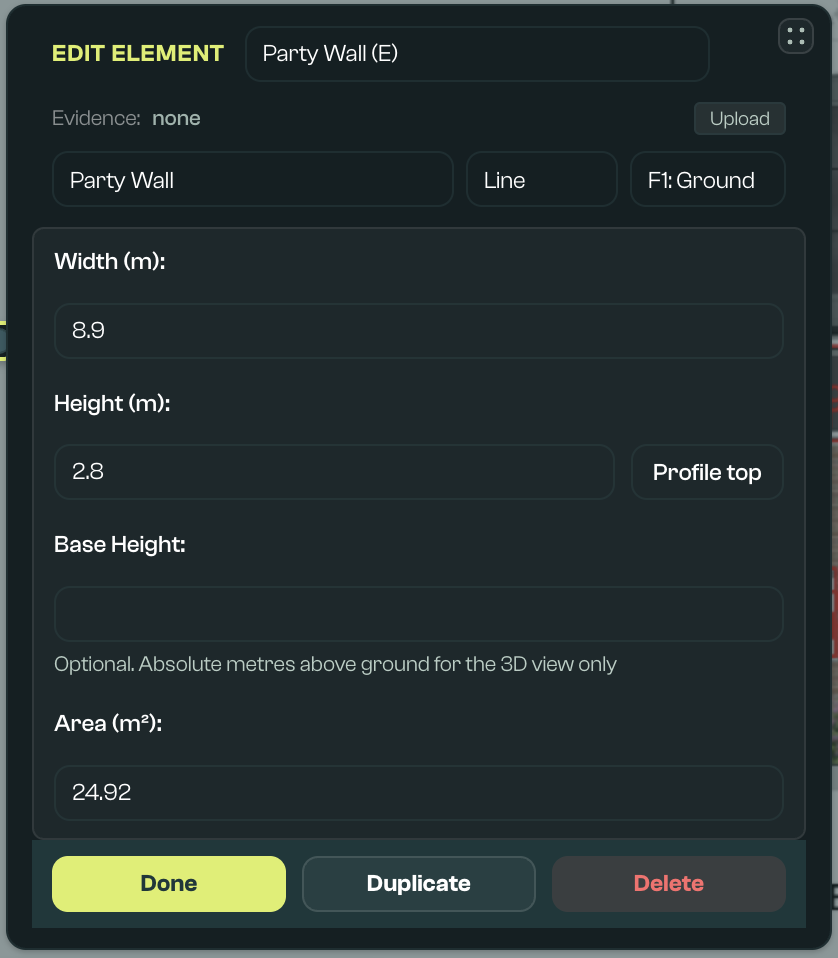
- Name: A human-readable name that has no impact on its properties.
- Type: Controls element properties. Element shape is constrained by type.
- Floor: Change the element to another floor by inputting directly, or select from available floors.
- Preset: Select a saved element preset or save the current element as a reusable preset where available. This is useful for repeated walls, windows, and other elements that share the same assumptions.
- Assembly calculator: For fabric elements, choose a saved assembly or build up layers from materials, cavities, and repeating bridges. Vulcan uses this to estimate fabric values such as U-value, construction resistance, and thermal mass. You can apply the result to the element and keep an auditable record of the assumptions.
- Ground U-value tools: For ground floors, Vulcan can help estimate U-value using the element area and perimeter, wall thickness, floor type, and relevant insulation or ventilation inputs. Suspended floors can also use underfloor insulation resistance and ventilation assumptions. See Fabric Calculators Reference for more detail on these calculations.
- Unheated space thermal resistance (Calculate R_u): For elements adjacent to an unheated space, Vulcan can help calculate the extra thermal resistance of that space (
R_u) and write it back to the element. Use this where a wall, floor, or roof separates the heated dwelling from an unheated garage, loft, stairwell, or similar space. Pitched roofs can also be marked as unheated where the internal heat-transfer surface should be treated differently from the external roof pitch. - System and PCDB inputs: System elements can use product data from the Product Characteristics Database where available. This helps populate system inputs from a selected product, but users should still check that the selected product and linked system assumptions match the dwelling. Heat-pump PCDB products are currently marked ECaaS-only: they can be submitted to ECaaS, but they can't be calculated in Vulcan. To calculate the model in Vulcan, use a sample preset or a complete heat-pump definition in Advanced Fields. See Systems.
- Validation flags: "Critical" (red) errors prevent HEM runs. "Warning" (orange) errors may indicate gaps or inaccuracies. Note flags are horizontally scrollable.
- Standard fields: Shown below the element. These are usually what is required to model the element in HEM's core methodology. Hovering over the label provides guidance on each field.
- Advanced fields: Less commonly available fields the user can optionally set. Default means the value comes from the defaults file (Preset on a system started from a sample). Schema means there is no default and the field's form is shown from the schema; a value you enter is added to the HEM JSON. Custom means you have overridden it, and Calculated means a Vulcan calculator set it.
- Duplicate: Creates a copy of that element.
- Delete: Deletes this element after user confirmation.
Zone editor
The Zone editor is used to review a zone and manage the space labels within it.
Select a zone from the Viewer to open the Zone editor. Vulcan models each dwelling as a single zone, created automatically when elements are drawn. You can't add a second zone.
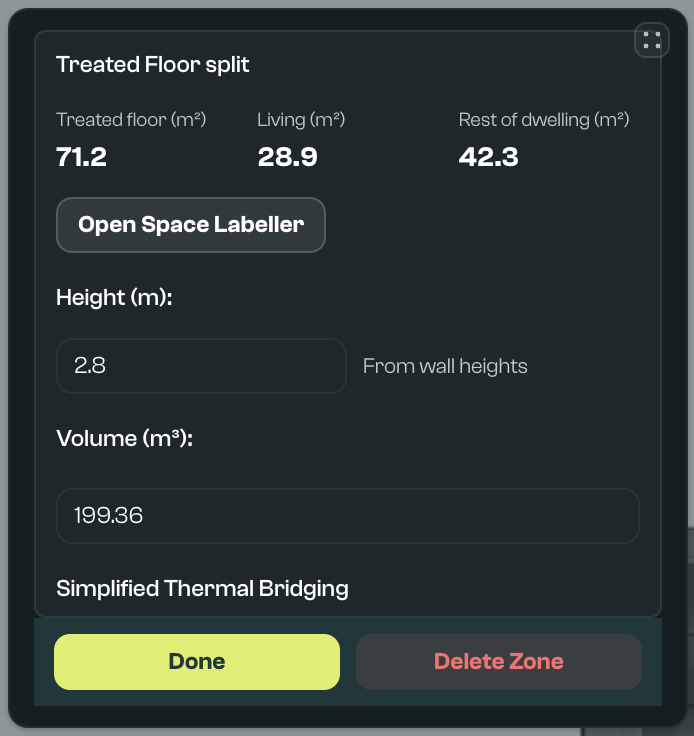
Open Space Labeller from the Zone editor, or from the space assignments link in Global Settings where room counts are shown. Space Labeller is used to mark room or space footprints within a zone.
Vulcan can infer space footprints from closed wall loops. Use Refresh footprints after editing walls. Use Draw room when a space needs to be added manually.
Each space should be assigned a room type, such as bedroom, living room, kitchen, bathroom, WC, utility, hall, circulation, other habitable, void, or other. Room types are used to derive room counts and can help set treated floor area, living area, and rest-of-dwelling area.
Room types feed simple compliance counts. Bedrooms count as bedrooms and habitable rooms. Living rooms count as habitable rooms and living area. Kitchens, bathrooms, WCs, and utility rooms feed wet-room, hot-water, or sanitary counts where relevant. Halls, circulation, voids, and other spaces can still contribute to floor area. Void labels and unknown room types do not add room counts; unknown room types show a warning so they can be checked.
Global Settings shows whether each room-count field is from space labels or a manual override. Use Use space labels to sync one field, or all room counts, back to the labelled footprints.
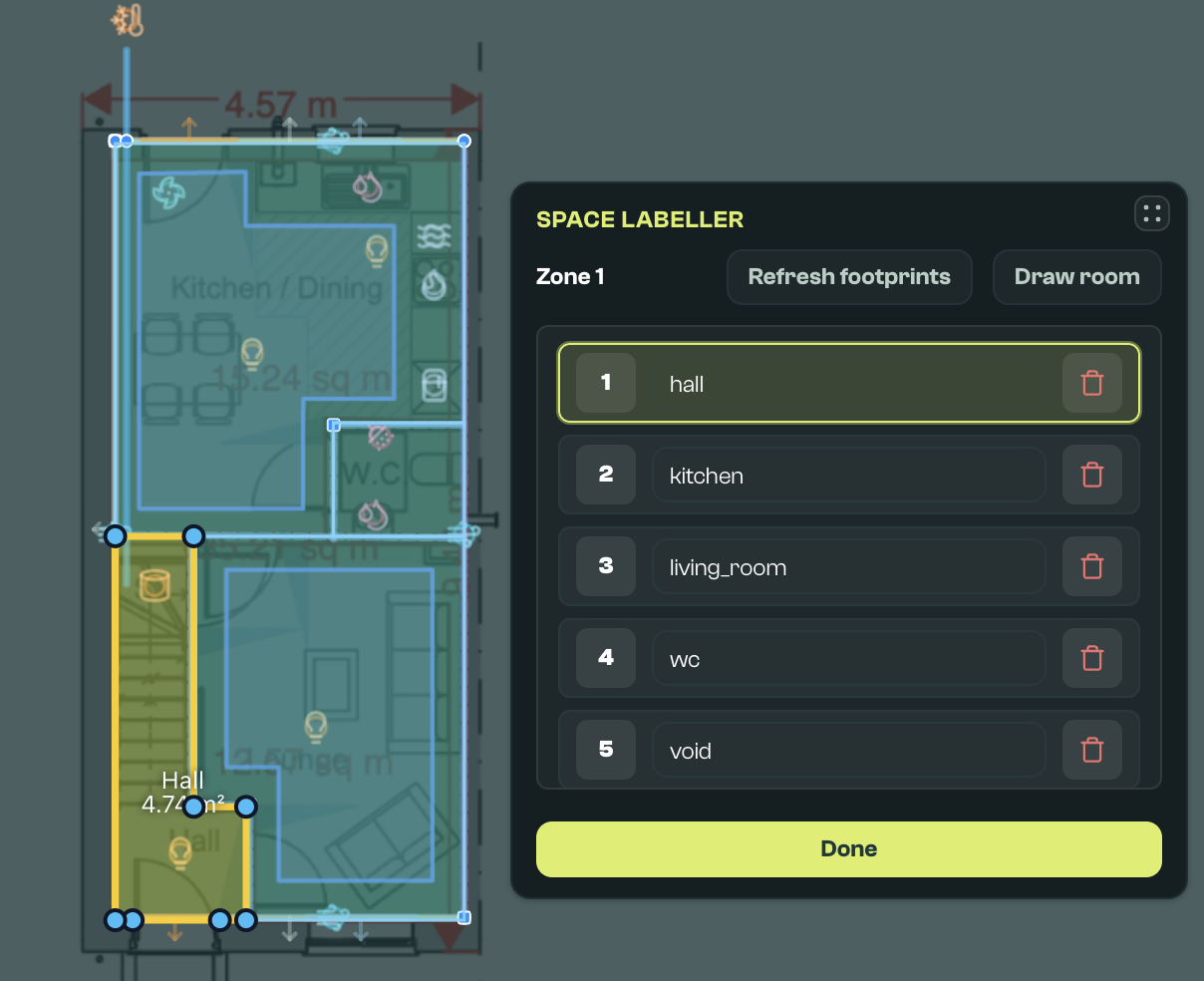
Space labels can show warnings if a space is not labelled, has an unknown room type, overlaps another space, or extends outside the floor area. Fix the room type, redraw the space, or refresh footprints after changing walls. Space labels are saved in the geometry CSV in a Space Labels section.
Object interactions and parenting
Some objects should be linked to a parent element. This includes openings linked to a host wall or roof, shading linked to a window, vents and hosted mechanical ventilation fans linked to a wall or window, ductwork linked to its mechanical ventilation unit, and roof-hosted objects such as solar panels.
Set or review parent links in the Editor after selecting the object. For example:
- Windows and doors should normally be linked to their host wall or roof.
- Window shading should be linked to the window it shades.
- Air vents can be linked to a wall or window so pitch and orientation stay consistent.
- Ventilation systems can be linked to a wall or window for hosted MEV fan types so placement, pitch, and orientation stay consistent. Link MVHR ductwork and terminals from the sections shown when the unit is selected.
- Solar panels should normally be linked to the roof plane they sit on.
Parent links help Vulcan infer placement, pitch, orientation, and validation checks for supported child types. After moving or renaming a host, review linked child elements; some links may need to be reset. If a parent is missing or a vertex is not snapped, Vulcan may show a warning in the editor, viewer, or canvas label.
Multiple element editor
Use this editor to edit multiple elements at once. It is only visible when multiple elements are selected. Use Shift+Click to select each element in the canvas or Element Viewer, or click and drag to marquee select.
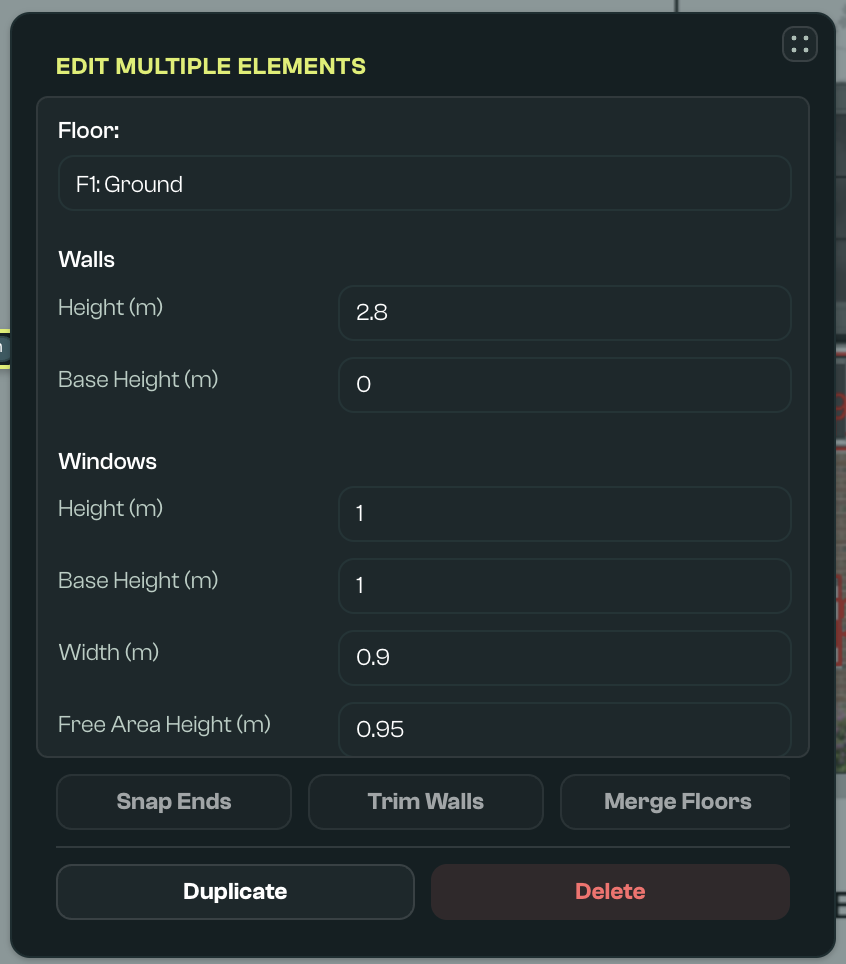
- Floor: Updates the floor for all selected elements.
- Batch properties: Updates specific properties for all selected elements. The current value of this property for selected elements, and the number of elements with this value, is shown below the inputs. Some property controls apply as soon as they are changed; others use Apply. Check the selected values after bulk editing, especially when the selected elements started with different values.
- Snap Ends: Extends line walls so they snap to nearby vertices, within the distance in the Tol. field (metres). Needs two or more line walls on the same floor.
- Trim Walls: Removes any part of line walls that extends beyond another wall, using the same Tol. field.
- Right Align: Adjusts the angle of linear elements to orthogonal angles, if they are within the angle in its Tol. field (degrees).
- Merge Floors, Mirror, and Rotate: Combine selected floor polygons, or mirror or rotate the selection.
- Apply: Applies batch property changes. This is not required for transforms or for Duplicate and Delete.
- Duplicate: Creates a duplicate of this group of elements.
- Delete: Deletes this group of elements after user confirmation.
Viewer / Elements panel
Shows all elements and zones in an input file. This panel can be moved, resized by dragging edges, or reset to its original state by double clicking the same handle.
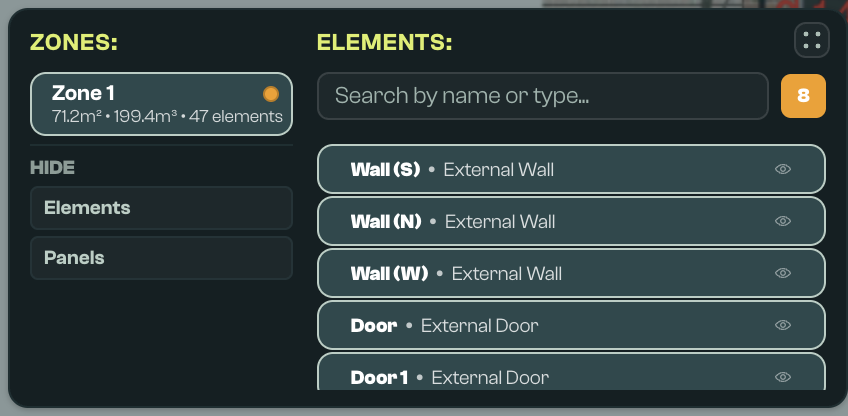
- Show/hide elements: In the Viewer/Elements panel, use Hide > Elements to hide thermal bridges, onsite generation, ductwork, pipework, sloped roofs, vents, or individual element pills. Hidden elements are not interactive on the canvas, but they remain in the model and saved CSV. Individual hidden element choices are saved locally for that model.
- Show/hide panels: In the Viewer/Elements panel, use Hide > Panels to hide or show the File, Compass, Draw toolbar, and Quick sim panels. This changes the current workspace view only and can be used to make more drawing space.
Element and Zone pills
Click an element or zone pill to select and edit it in the Element Editor. Double click to centre it on screen. Each dwelling has a single zone, created when elements are drawn.
Search bar
Search elements by name or type.
Validation badges
Badges displayed next to the search bar indicate validation issues:
- Warning: Orange validation dots or badges. These will not block a run.
- Critical: Red validation dots or badges. These will prevent a HEM core run.
- SAP differences: Blue validation dots or badges. These indicate a difference to SAP inputs.
Validation is also visible inside the Element Editor when an individual element is selected, and in an element's label on the canvas. Clicking on a validation badge in the Element Viewer filters to elements with that issue type.
FHS validation is always on, so gaps against the FHS schema are Critical.
Part F ventilation checks may also appear in validation. These checks use dwelling details, space labels, background vents, extract inputs, and mechanical ventilation inputs to highlight missing or insufficient ventilation. Start by checking room labels, then check the relevant vent or mechanical ventilation element.
Systems
Heating, hot water, and cooling are Plant system elements, added from the Heating & Hot Water section of the element picker. A Plant system's Category says what it is: Heat source, Hot water, Space heating, or Space cooling. Radiators and underfloor heating are Heat emitter elements. Ventilation, solar panels, and batteries have their own element types in the Ventilation and Solar & Battery sections.
Worked example: heat pump, radiators, and a cylinder
- Heat source. Add a Plant system. Under Source, choose Sample, set Category to Heat source and Preset to hp.
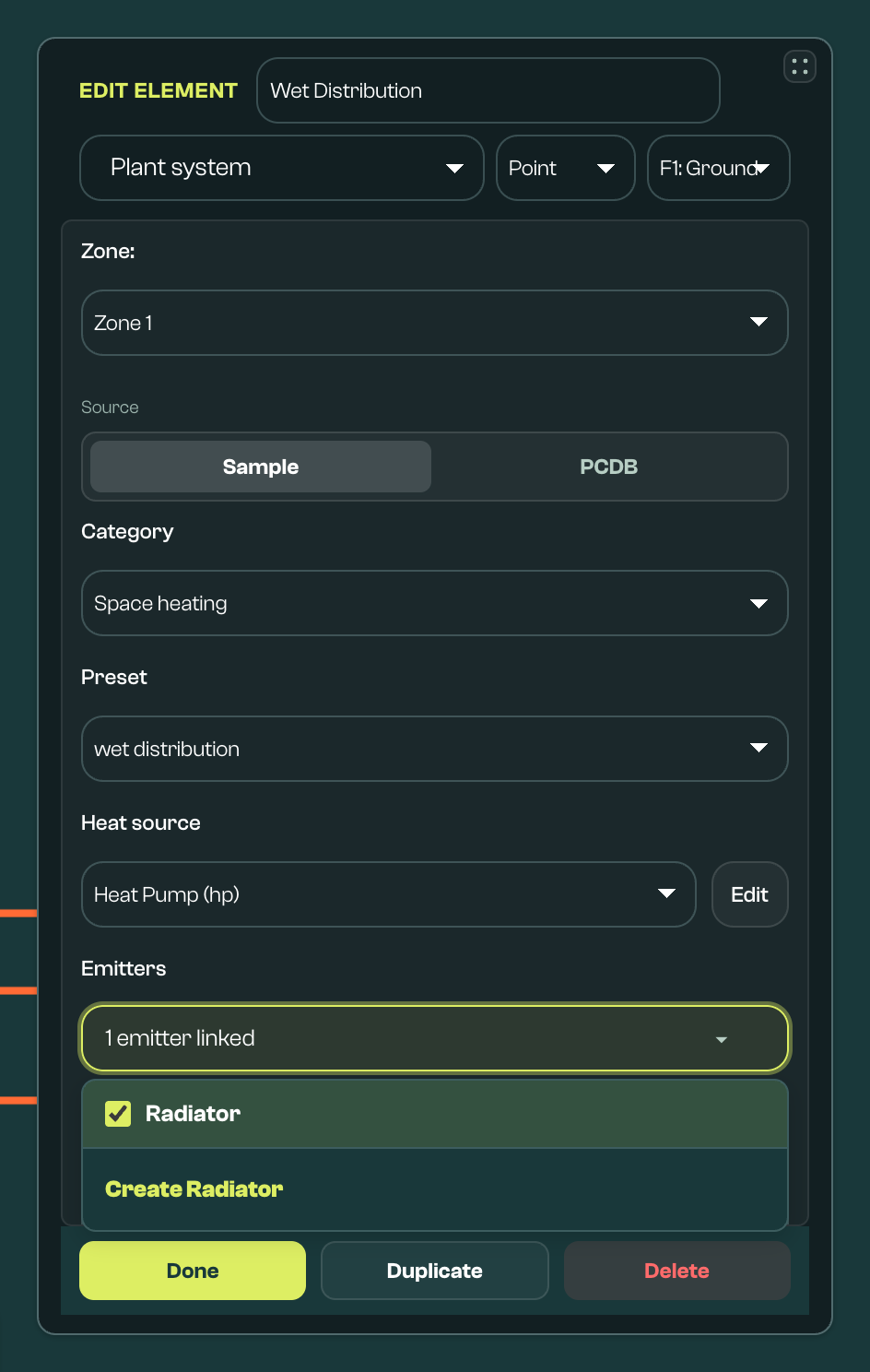
- Space heating. Add a second Plant system with Category Space heating and Preset wet distribution. Its Heat source dropdown links the heat pump; if the model has only one heat source, Vulcan links it for you.
- Radiators. In the same Editor, click the Emitters dropdown and choose Create Radiator at the bottom. Vulcan adds a radiator next to the Plant system, in its zone, already linked, and opens it. Set Unit Number to the number of radiators it represents. To add more radiator elements, select the Space heating system again and repeat, or tick existing emitters in Emitters to link them.
- Hot water. Add a Plant system with Category Hot water and Preset heat pump cylinder. It heats the cylinder from the heat source named
hp. - Ventilation. Add a Ventilation system and set its Ventilation Type (see Ventilation: MEV or MVHR).
The Space heating Plant system is the hub: it links one heat source to the emitters it serves.
Other common systems
- Gas combi and radiators. Heat source gas boiler; hot water combi boiler, which links to the heat source named
boiler; then space heating and radiators as above. A combi boiler from PCDB adds the boiler and its combi hot water in one Plant system (its card shows DHW included), so don't add a separate hot water system: it would also definehw cylinderand raise a conflict (see Several heat sources). - Heat pump, underfloor heating, and a cylinder. As the worked example, but draw a Heat emitter as an area over the heated floor instead of creating radiators. An emitter drawn as an area starts as Underfloor Heating (one drawn as a line starts as Radiator). Enter its Area (m²) and choose the Space heating system in its Space heat system field.
- Air-to-air (warm air). Heat source a2a heat pump; space heating warm air heat pump. Warm air has a Heat source but no emitters. Give the cylinder its own heat, for example the immersion cylinder or hwo heat pump cylinder preset.
- Electric storage or panel heaters. Space heating elec storage heater or instant elec heater. These need no heat source and no emitters. Hot water is usually immersion cylinder.
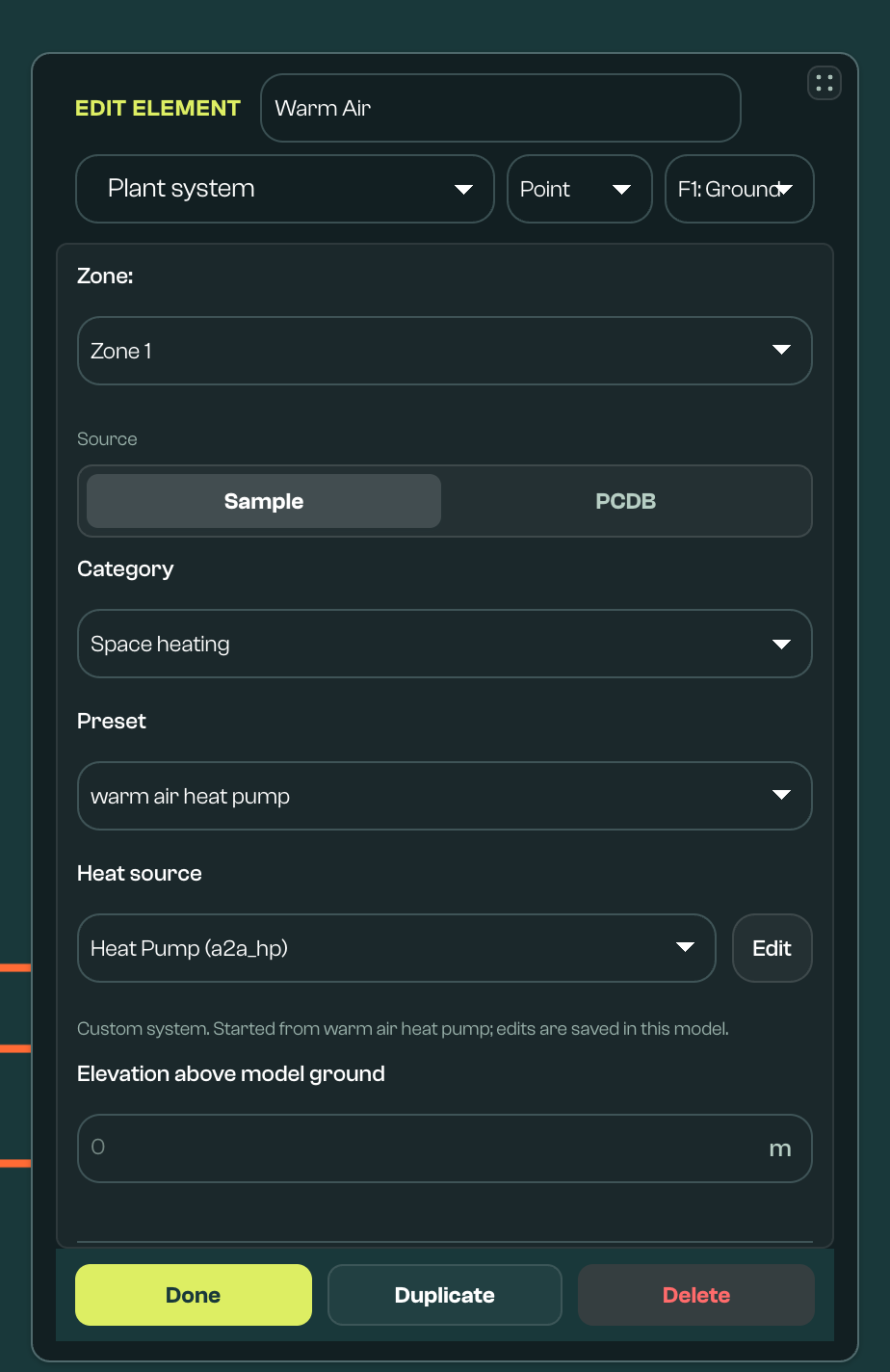
How links work
- Space heating → heat source. The Heat source dropdown lists every heat source by element name, with its system name in brackets, for example Heat Pump (hp). Edit opens the linked element.
- Space heating ↔ heat emitters. The link is stored once, on the emitter, so both sides always agree. From the system, Emitters lists its emitters and any unlinked emitters in its zone. From an emitter, the Space heat system field chooses the system, or Create new SpaceHeatSystem... makes a wet distribution system and links it. Link emitters only to a wet distribution system.
- Hot water → heat source. For a cylinder, the Heat Source picker at the top of Advanced Fields chooses Immersion, Hot-water-only heat pump (built-in), a heat source in the model (shown as Wet: followed by its name), or Manual (Advanced below). A combi boiler picks its boiler in Advanced Fields.
Heat emitters are drawn on the canvas (radiators and fan coils as lines, underfloor heating as an area), but their position only sets their zone. Their output comes from Unit Number (how many radiators or fan coils) or Area (m²) (underfloor heating). Set an emitter's type with its Subcategory: Radiator, Underfloor Heating, or Fan Coil.
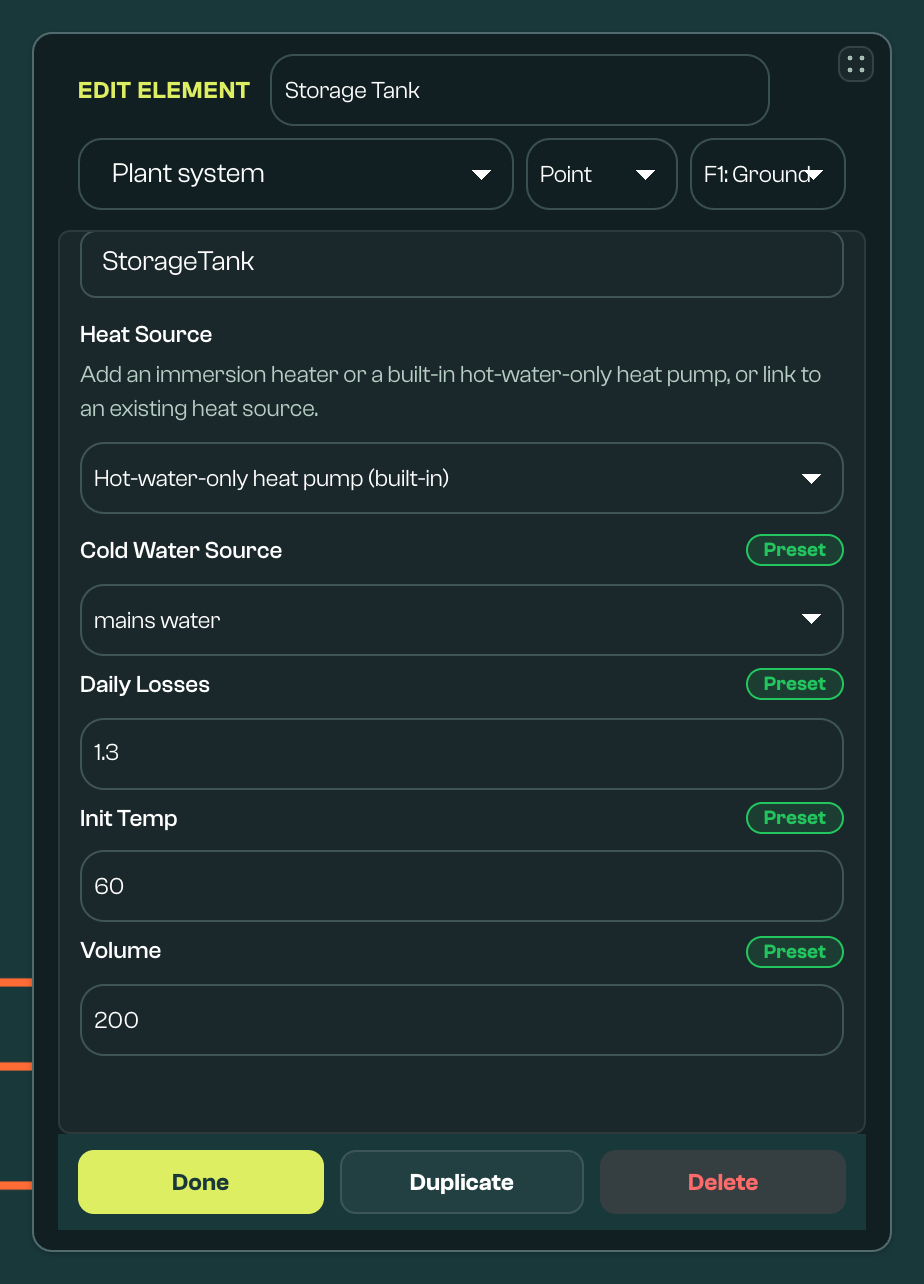
Where system values come from
Select a Plant system and choose a Source.
Sample works for all four categories. Choose a Category, then a Preset. The heat source presets are hp, hp large, and hp upsized (air-to-water), a2a heat pump (air-to-air), exhaust air mev heat pump, gas boiler, and heat battery. Heat source, hot water, and cooling presets give the system a fixed name, such as hp, and other systems link to it by that name.
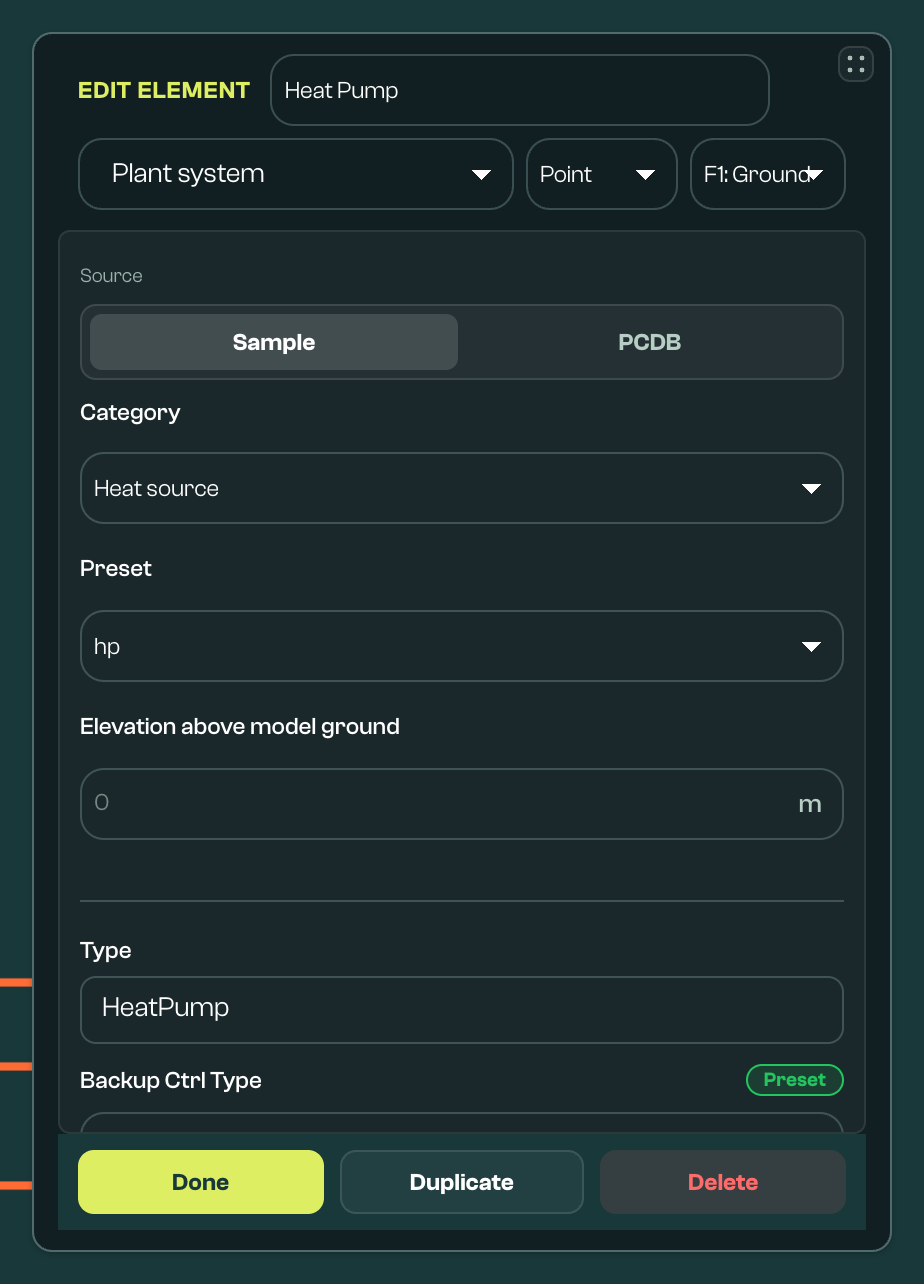
PCDB covers boilers, heat pumps, some hot water products, and WWHRS; the product sets the category. Click Browse PCDB…, pick a product, then Apply system.
| Product type | What you can do |
|---|---|
| Regular boilers, combi boilers, smart hot water tanks, and waste water heat recovery systems (WWHRS) | Apply and calculate in Vulcan. Add the heat source before a smart hot water tank: applying the tank links it automatically. |
| Heat pumps | Apply and submit to ECaaS, the government's calculation service (see Calculate), but not calculate in Vulcan. They are marked ECaaS-Only. A hot-water-only heat pump turns the Plant system into a cylinder heated by that heat pump. |
| Booster heat pumps, ventilation, emitters, electric heaters, heat batteries, HIUs, heat networks, and other types | Not yet. They are listed under Planned mappings or Reference only. Use a sample preset or Advanced Fields instead. |
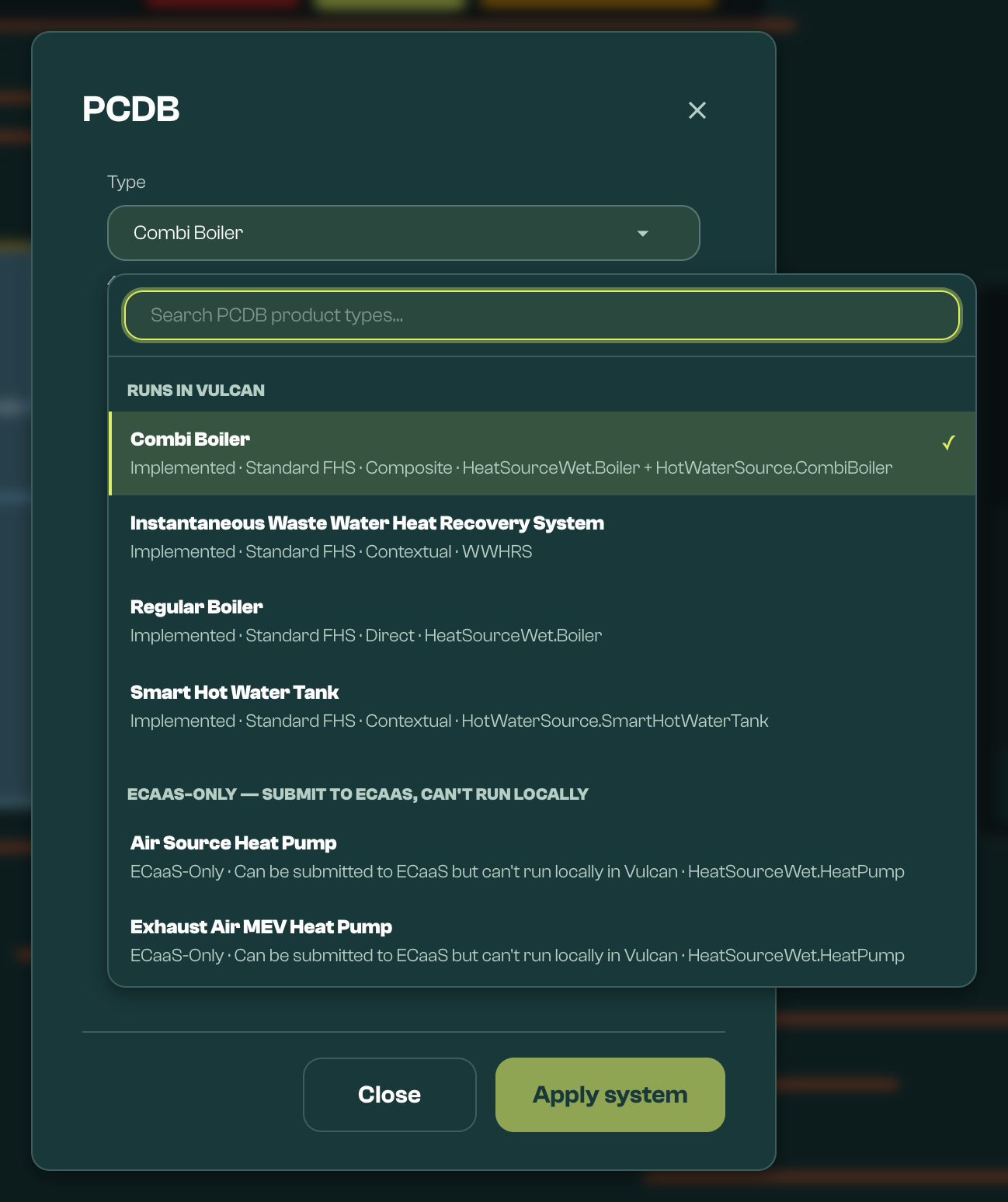
An applied heat pump shows: "ECaaS-only product: this model can be submitted to ECaaS but can't run locally in Vulcan." To calculate a heat pump model in Vulcan, use a sample preset or enter the heat pump in Advanced Fields.
Advanced Fields shows every input. Start from a preset and change values, or fill in the required fields yourself. After any edit, including choosing a heat source, the Editor shows Custom system, and the edits are saved in this model. Without a preset, Vulcan warns: "No system preset selected — pick a library preset or complete required fields in Advanced".
Ventilation: MEV or MVHR
FHS needs a Ventilation system in every dwelling. Set Ventilation Type to Intermittent MEV, Centralised continuous MEV, Decentralised continuous MEV, or MVHR.
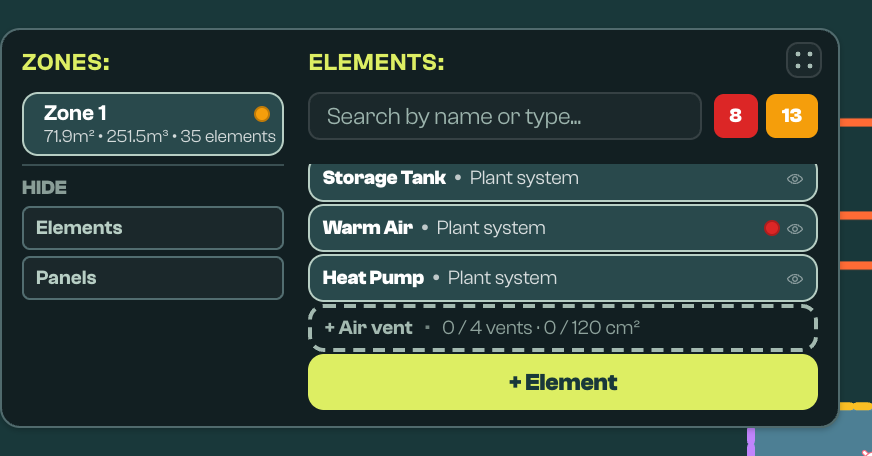
- MEV: add Air vent elements for background ventilation. The Elements panel shows a + Air vent prompt until there are enough; click it to add them, placed on windows in habitable rooms where possible.
- MVHR: in the Ventilation system, use the MVHR ductwork and MVHR terminals + buttons to draw linked Ductwork and MVHR terminal elements, or draw them yourself and set their MVHR unit. Don't add background vents.
Rules Vulcan checks
| Rule | What you will see |
|---|---|
| The dwelling needs space heating, hot water, and a Ventilation system. | A + prompt in the Elements panel for each missing system, for example + Plant system · Space heating. Hover over it for the message, such as "FHS: Space heating system". |
| A wet or warm air system must link a heat source, and every heat emitter must link a Space heating system. | SpaceHeatSystem "<name>" must link a heat source, or "SpaceHeatSystem link is required" on the emitter |
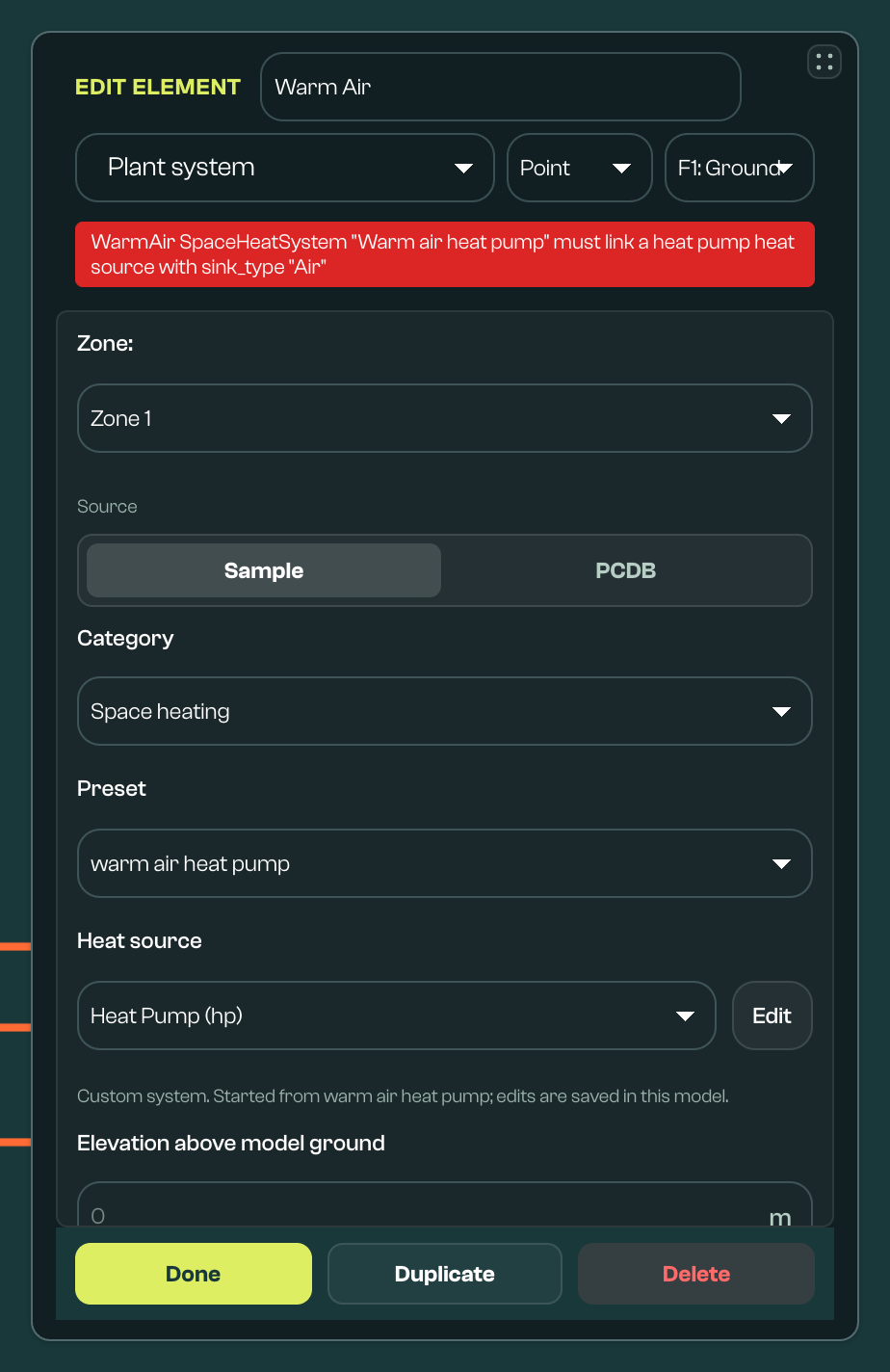
| Warm air needs an air-to-air heat pump. | Messages such as WarmAir SpaceHeatSystem "<name>" must link a heat pump heat source with sink_type "Air" |
| An exhaust-air heat pump needs Centralised continuous MEV or MVHR. | "Exhaust-air heat pumps require Centralised continuous MEV or MVHR ventilation", or "Exhaust-air heat pumps cannot be combined with Intermittent MEV or Decentralised continuous MEV" |
| Ductwork and MVHR terminal elements belong to an MVHR unit only. | "Parent ventilation system must use MVHR" |
| MEV needs enough background vents. For continuous MEV: at least 40 cm² of vent area per habitable room, and at least bedrooms + 2 vents. Intermittent MEV needs more area (80–100 cm² per habitable room, plus bathrooms and the kitchen). Vulcan checks the dwelling total, not each room. | The + Air vent prompt, for example "0 / 4 vents · 0 / 120 cm²". Hover over it for the full message. |
| A dwelling with MVHR should have no background vents. | "Part F: dwellings with MVHR should have no background vents — remove existing vents or switch ventilation strategy." |
For example, here the warm air system is linked to hp, an air-to-water heat pump, so Vulcan flags it. Linking it to the air-to-air a2a_hp clears the message.
Part F checks also cover extract rates and the number of MEV units, and use the dwelling's room counts, so label spaces first (see Zone editor).
Several heat sources
A dwelling can have more than one heat source or cooling system, as long as each has its own name. It has one hot water system, named hw cylinder. Plant systems that define the same name with the same settings count as one system. If they define it differently, the Editor shows:
"Systems rows 'A' and 'B' both define heat source 'X' differently — remove one of them, or make them identical."
Save then fails with build error E060, which gives the same message but names the section by its HEM key, such as HeatSourceWet.
Presets share names: hp, hp large, and hp upsized all name their heat source hp, every hot water preset is hw cylinder, and both air-conditioning presets are space_cooling (no cooling adds nothing). So two Plant systems using hp with the same settings count as one heat source, but hp plus hp large is a conflict.
Which check catches what
| When | Check | What it catches |
|---|---|---|
| While you edit | Live validation on the element, canvas label, and Validation badges | The rules above, including Part F, missing links, name conflicts, and ECaaS-only products |
| On Save | Schema check | Missing or invalid inputs, and E060. Errors appear next to Save, and the model is hidden from Scenarios until it saves cleanly. |
| On calculation | FHS checks | FHS compliance-path inputs. Global Settings shows: "Schema checked on save; FHS checks on calculation." |
| Before a local run | ECaaS-only check | ECaaS-only products. The run stops with: "ECaaS-only product (…): this model can be submitted to ECaaS but can't run locally in Vulcan." |
| During the HEM run | HEM | Anything the earlier checks miss. |
WWHRS, cooling, solar panels, and batteries
- WWHRS: add it as a Plant system from PCDB. There is no sample preset.
- Cooling: a Plant system with Category Space cooling. Cooling systems combine by name in the same way as heat sources.
- Solar panels and batteries: draw a Solar panel on the roof and enter its Peak Power (kWp), and add a Battery storage element with its Capacity (kWh). They are not Plant systems.
Set system values on the element, not in the defaults file: the defaults are fixed by the HEM model version. To compare system options across models, use the Scenarios Systems parameters.
Quick sim
The Quick sim panel can run a preview calculation for the current saved model and show headline results such as FHS primary energy rate or annual solar generation.
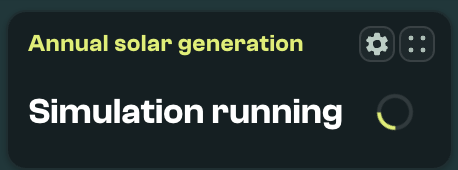
Use it as a fast sense-check while building the model. Save the model before running Quick sim, then refresh the preview after making further saved changes. Quick sim doesn't run while the last save has validation errors.
Quick sim uses the batch workflow in the background and creates a preview run for the saved model. Weather can be selected in the panel with Vulcan Pro; on the free plan the preview uses the default weather. The default preview weather is RAF_Bedford_01 where no other weather file is selected.
Use the Calculate section for ECaaS submissions and the Scenarios section for full scenario modelling. Quick sim is intended for quick checks during Geometry work.
CSV file format for HEM inputs
Most visual inputs in the Geometry screen are saved as CSV files in input/base_models in the user's workspace. This folder can be opened from the File Bar file selection dropdown. The CSV format can be reviewed in spreadsheet tools and integrated with local workflows. When saved, it is merged into a HEM JSON file using the selected defaults file.
For day-to-day use, most users should edit geometry through the canvas and use the CSV file as an auditable record of the model.
For integrations or spreadsheet workflows, see the Geometry CSV contract.