
Using the Calculate section requires Vulcan Pro, an active internet connection, and a signed-in Vulcan account. See Plans and billing for plan details. Authentication can typically be refreshed by following prompts in the app, or by refreshing the page.
Purpose of the Calculate section
Calculate is used to prepare and submit Vulcan inputs to ECaaS (Energy Calculations as a Service), the official HEM calculation service. It is where users create draft submissions, add HEM input files, attach evidence, set assessment metadata, request review, submit to ECaaS, and review returned status and headline metrics.
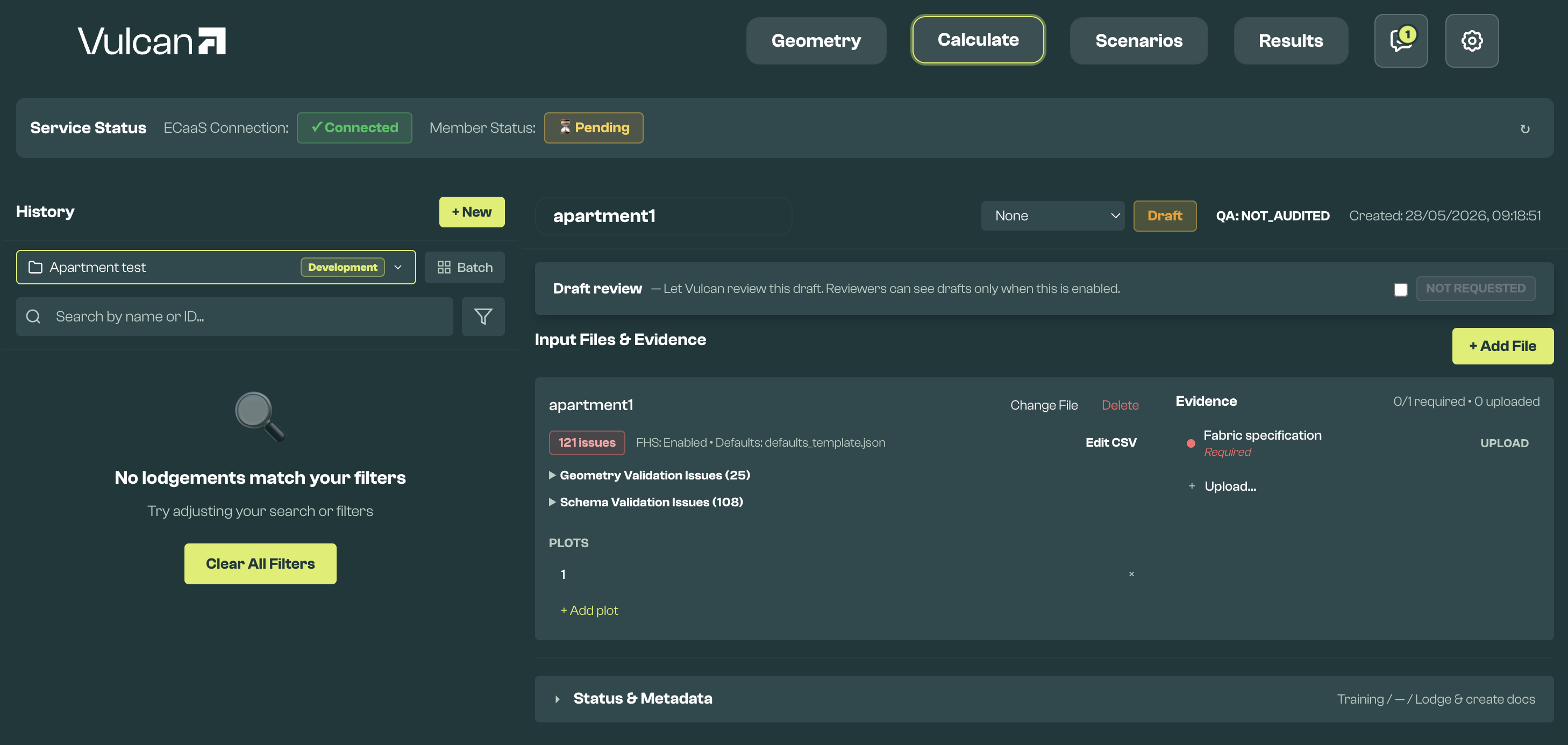
Service and membership status
The status strip shows whether ECaaS is reachable and whether your account can use member-only submission purposes.

Active Vulcan Scheme Members can use Live Project and Qualification purposes. Other users can use Training. Internal QA is only available to Vulcan reviewers.
Submission history
The history panel shows submissions prepared for ECaaS. (They are shown in the app as lodgements.)
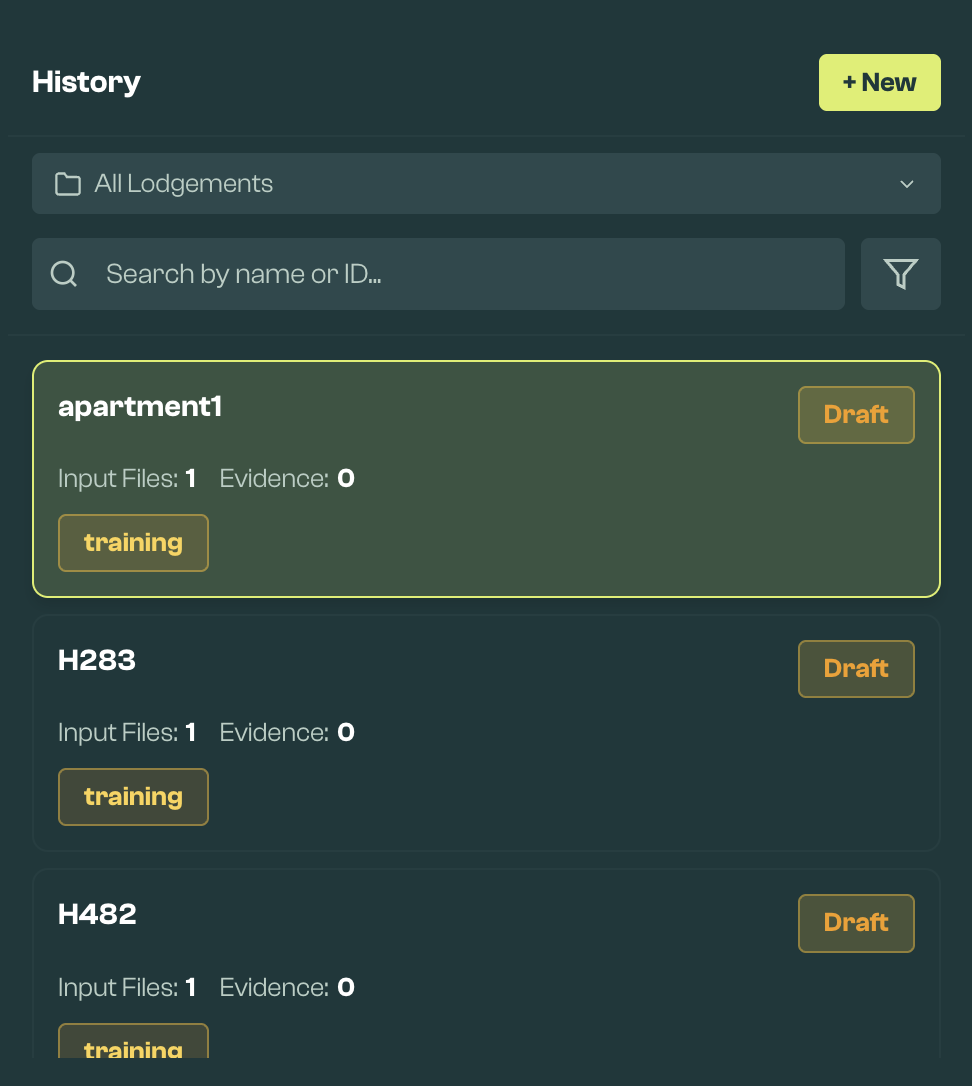
Use the history panel to:
- create a new submission
- open an existing submission
- search or filter by status, purpose, assessment stage, submission mode, validation status, or date
- filter by project with the project selector
- use batch actions, where available, to apply consistent changes or export submission data
Batch input changes are intended for project-level updates where the related geometry CSV is present. This helps keep later edits consistent with the original Geometry workflow.
Project-based batch actions can also be started from the Geometry file dropdown when a project has saved geometry models. These actions use the saved geometry models in that project. See the Geometry Section Guide for project and development setup.
Submission details
Selecting a submission opens its details. In a draft submission, you can edit the name, assign a project, add input files, attach evidence, set metadata, and request a Vulcan review.
Click + Add File to select HEM input files from your workspace. Vulcan-generated input files are stored under input/batch_parameters/base_json, with the related geometry CSV under input/base_models.
After a file is added, you can assign plots, attach evidence, and review validation carried through from the Geometry section. Multiple input files can be added to a submission.
Draft submissions can be synced from the saved workspace files. If a draft's workspace files are missing, use Restore Files to restore them from the copy Vulcan stored when the draft was last synced. The sync uses the selected HEM input and, where available, the related geometry CSV, defaults file, validation snapshot, overlays, SAP files, and evidence links. Unsaved Geometry edits are not included, so save the model before syncing or requesting review.
Evidence requirements are partly derived from the model. For example, fabric elements, windows and doors, thermal bridge elements, heating or hot water systems, and ventilation systems can each create different evidence expectations. The evidence panel should be treated as a checklist for what Vulcan can identify from the saved model, not as a replacement for professional judgement about the assessment evidence pack.
Status and metadata
Purpose: Choose whether the submission is for Training, Qualification, Live Project, or another available purpose.
Assessment Stage: Choose whether this is Design or As-Built. This affects the evidence expected for the assessment.
Live Project As-Built submissions need a linked Design submission, which can't yet be linked in the app. Contact support to lodge one.
Submission Mode: Currently Check compliance (no docs) only. Lodge & create docs is not yet available.
Plot Identity Mode: Choose whether plot identities represent real sites, where this is required for QA or lodgement workflows.
Submitting to ECaaS
Submit is available once you have added at least one input file and the draft has no validation errors. Submitting a Live Project or Qualification assessment uses one lodgement credit from your organisation; Training submissions are free. Once an assessment is submitted to ECaaS, it cannot be edited. Vulcan will show the ECaaS response, submission status, and headline metrics when they are available.
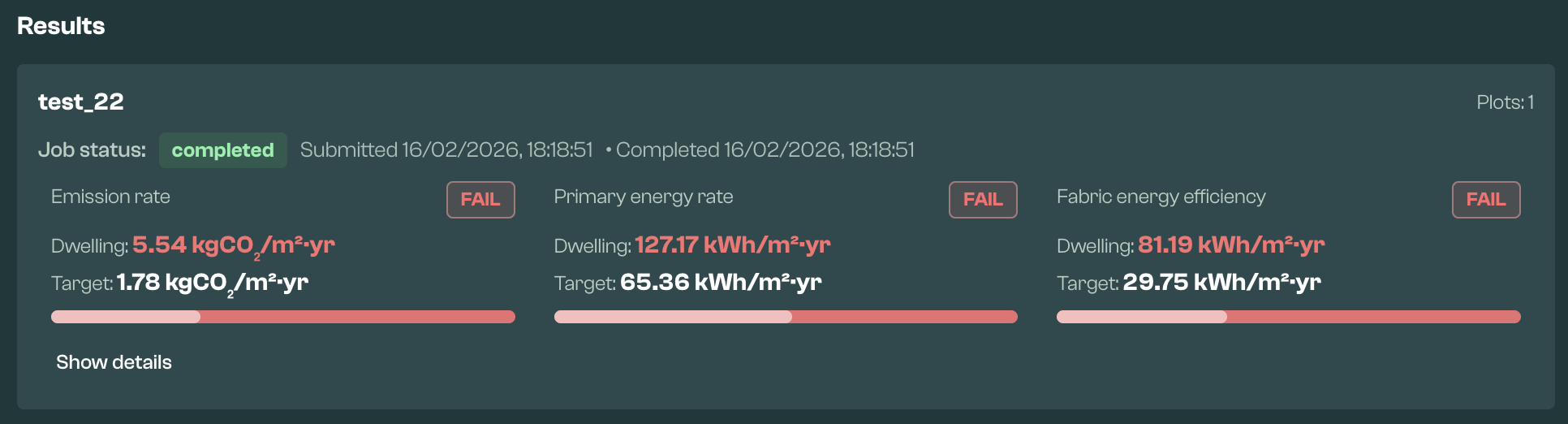
If changes are needed after submission, use Create Update to start a linked draft, then submit the revised assessment.
Audits and reviews
Submitted assessments may be reviewed or audited by Vulcan. Review status is shown in the Calculate section, and members will be notified directly where action is needed.