
Using this section requires choosing a workspace and installing the Sample Library. See Setting up Vulcan Software for instructions. Batch modelling, particularly with customised parameters or merges, can produce unexpected outputs, so users are responsible for checking the inputs and results.
Structure of the Scenarios Section
The Scenarios section runs local Home Energy Model simulations outside the ECaaS compliance submission workflow. Use Calculate for ECaaS compliance drafts and submissions.
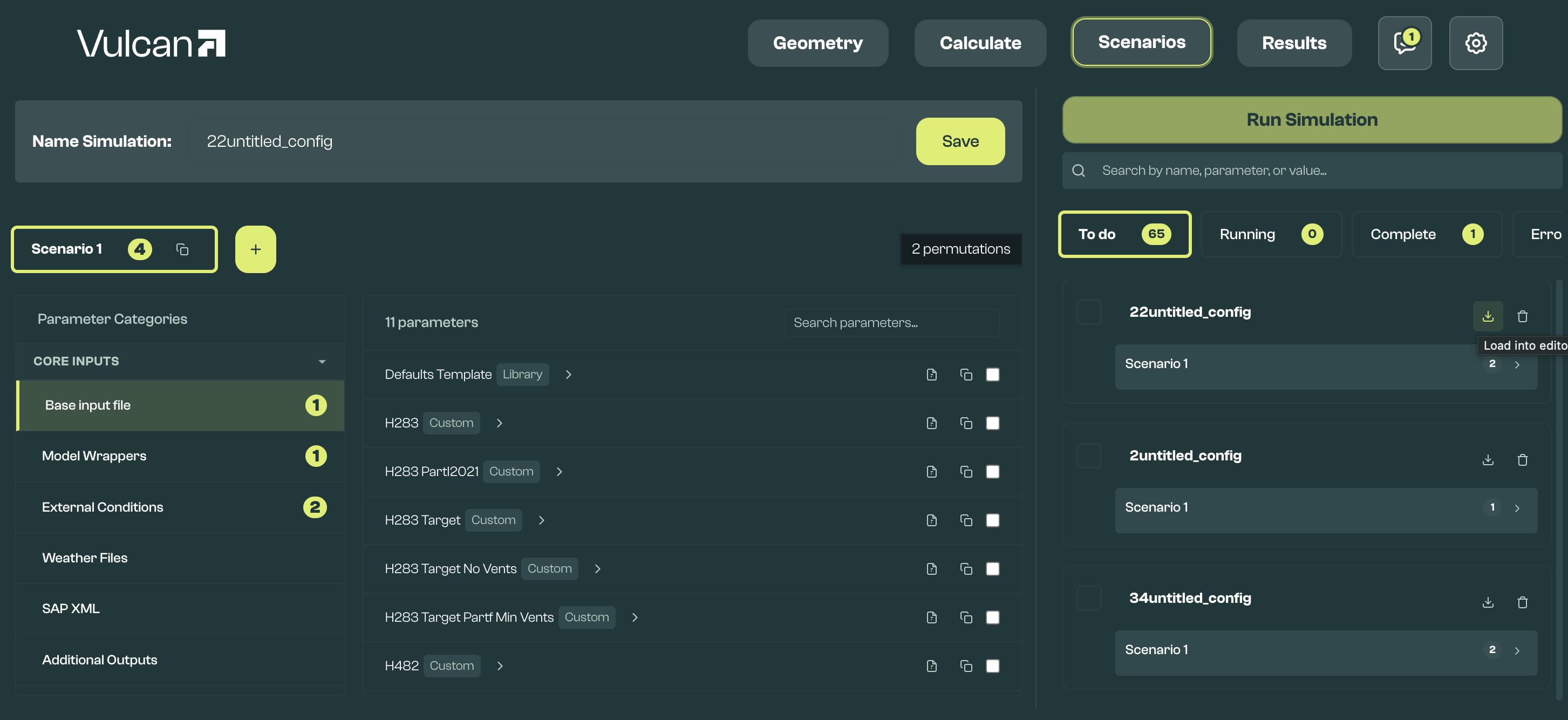
Use it to:
- use alternative data for weather, occupancy, fabric, and systems than what is automatically set by FHS or other wrappers. This can be useful to calibrate models to actual or potential dwelling use
- understand detailed half-hourly outputs
- test the impact of design changes on outputs without creating new input files
Scenario options depend on your plan. On the free plan, a Batch Config is limited to one scenario with one base input, an FHS wrapper, and the default weather. Greyed out options need Vulcan Pro. When a saved configuration uses Pro options, you can inspect it or create a copy that runs on the free plan. See Plans and billing.
Defining Batch Configs and Scenarios
Batch simulation configurations (Batch Configs) are created and edited in the Scenarios section, and saved into the user's workspace under input/batch_configs.
All Batch Configs must have a Base input file created from the Geometry section, as well as a wrapper. Additional parameters can be chosen from the categories outlined below.
If multiple parameters are chosen for a single category within a single scenario, each selected parameter is modelled as a separate permutation. This approach would be used, for example, if modelling a single dwelling with two separate weather files. Alternatively, separate scenarios can be used. The total number of permutations modelled is visible at the top of the page.
Every base input in a Batch Config must use the same HEM model version, set in Geometry Global Settings. When a Batch Config is saved, Vulcan captures a snapshot of its models, defaults files, snippets, and weather. Later edits are not picked up automatically, so after editing a model or snippet, open the Batch Config and save it again.
Before running a Batch Config, check that:
- the workspace is selected and the Sample Library is installed or restored
- the Geometry model has been saved successfully
- the saved geometry has built a merged HEM input in
input/batch_parameters/base_json - the required base input is selected
- a model wrapper is selected (weather is optional; without one, the HEM model version's reference weather is used)
- any visible validation messages in the Scenarios section have been resolved or understood
Batch Parameters
Batch Configs are built from parameter categories. The app groups common public-facing parameter categories into core inputs, fabric, and systems. Other advanced or custom categories may appear depending on the installed library and selected wrapper.
Core Inputs
Base input file: The dwelling input created from the Geometry section. Each Batch Config needs at least one base input.
Model wrappers: Choose how the model should run. fhs_compliance creates detailed FHS outputs, and fhs_assumptions applies FHS assumptions while preserving a core-style run. Only these two wrappers can run. Older saved configurations may reference a passthrough wrapper; it is no longer offered and cannot run.
Weather files: Choose the weather file used for the simulation. Weather files are the Scenarios weather input. ECaaS uses the compliance weather file for compliance calculations.
Location: Sets location-related conditions for infiltration and ventilation: shield class, terrain class, and altitude. Other Ventilation Environment values, such as ventilation zone base height, always come from the model; see the Geometry Section Guide.
Compliance settings: Varies inputs used for HEM:FHS runs, such as Part O/G settings, bedroom and wet room counts, ground floor area, and heating control type.
Fabric
Simplified fabric: Varies thermal properties for windows, walls, roofs, doors, party elements, ground floors, and thermal bridges.
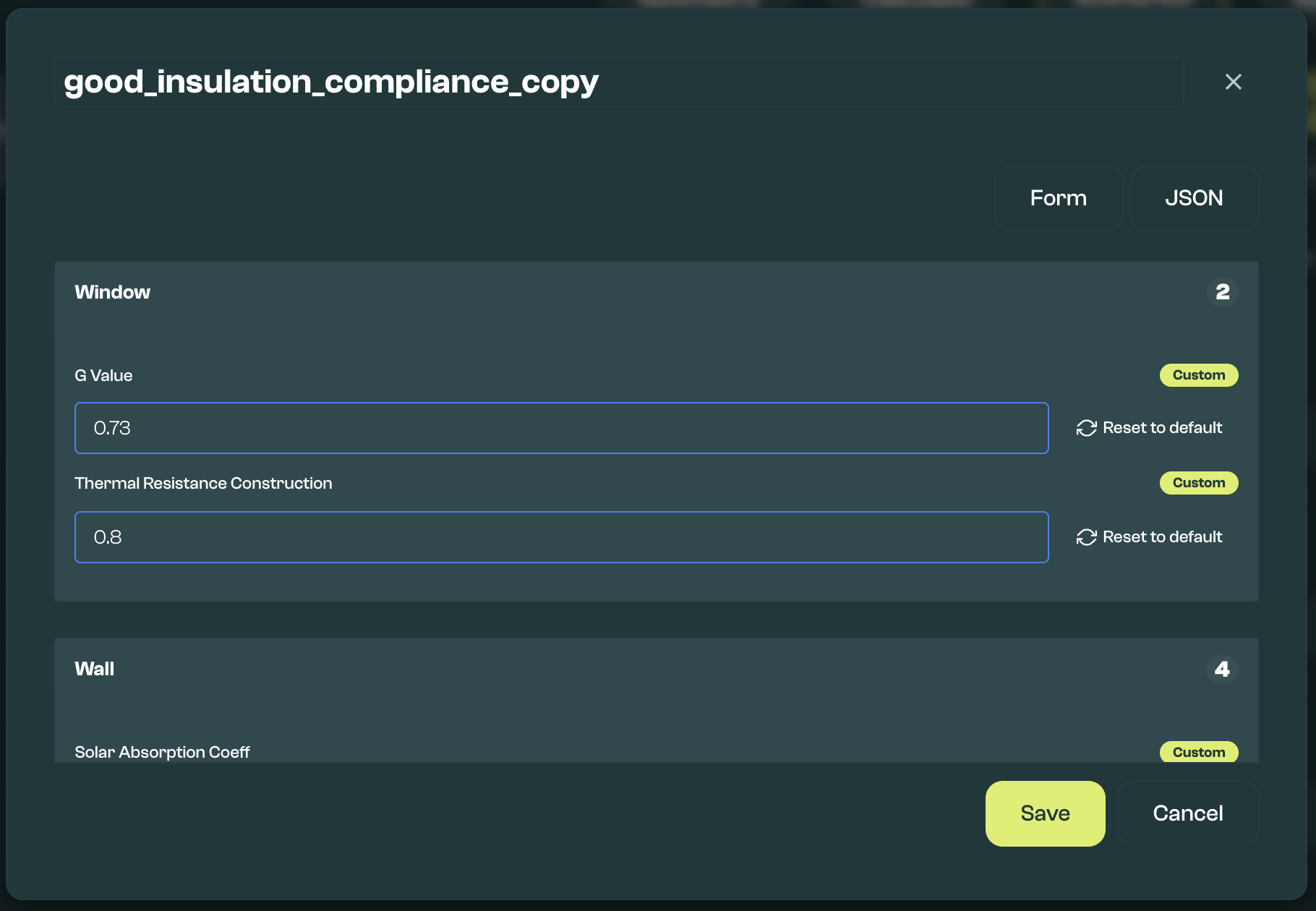
Airtightness: Varies airtightness test pressure and test result.
Orientation: Rotates building elements to test different dwelling orientations.
Systems
Heat source: Replaces all wet heat sources in the model with the selected one, such as a heat pump, boiler, or heat battery. When exactly one heat source remains after a heat source or hot water source change, existing space heating systems and hot water sources are pointed at it; warm air systems are only pointed at an air-to-air heat pump.
Hot water source: Replaces the whole hot water system with the selected preset.
Events: Sets hot water event patterns, such as repeated draw-offs over a day, week, or year.
Space heat emitters: Applies emitter settings, such as radiators or underfloor heating, to the existing wet distribution systems, keeping their controls, zone, and heat source.
Space cooling systems: Adds or replaces the selected cooling systems. The no-cooling option leaves existing cooling systems unchanged.
Mechanical ventilation unit: Replaces the settings of the model's existing ventilation unit. It cannot add or remove a unit.
Solar systems: Adds or updates solar PV assumptions. The none option leaves existing PV unchanged.
Battery systems: Adds or updates battery assumptions. The none option leaves existing batteries unchanged.
A scenario cannot change the type of an existing system, for example from MVHR to MEV or from a cylinder to a combi boiler: the run stops with an error. Make that change in the Geometry model instead.
Models that use an ECaaS-only product, such as a PCDB heat pump, can't run in Scenarios unless a Heat source or Hot water source parameter replaces the section that holds it. Submit them from Calculate instead.
Tariffs are managed in the Results section for cost metrics, rather than selected as a Scenarios category.
Parameter Library, custom snippets, and JSON editing
The parameter list is loaded from input/batch_parameters in your workspace. Snippets listed in the Sample Library manifest are shown as Library snippets. Files that are present in the workspace but are not part of the manifest are shown as Custom snippets.
The parameter rows include a JSON view button so you can inspect the file that will be merged into the model. Most parameters can be duplicated to create an editable copy, but weather files and model wrappers are not duplicated from this control. Parameters that are not part of the initial sample library can also be edited.
Schema validation is provided for editing the base JSON and some other parameters, but this should be treated as indicative for custom merge categories. If you create or edit custom snippets, review the generated inputs and outputs before relying on the scenario results.
Every parameter applies to the whole model. Older Batch Configs that assigned parameters to individual zones are folded into whole-model selections when every zone made the same choice; otherwise, select the parameters again, then save. Lighting, Glazing, Space heat systems, SAP XML, and Additional outputs are hidden, because HEM model versions can't run them yet.
Running Batch Simulations
Saved Batch Configs appear in the Simulations Panel.
Batch Configs can be selected with a click. When Run Simulation is clicked, Configs are queued for local simulation. Simulation progress is visible through a loading bar. Simulations that do not have any associated output files are shown as To do. Simulations currently running are shown as Running. Simulations that produce all expected output files are shown as Complete. Simulations that either have an error or only partially produce expected files are shown as Error.
Very large scenario grids are highlighted above 500 permutations. If this happens, consider splitting the work into smaller Batch Configs or reducing the number of selected parameters before running.