
This page tells you how to add and link systems in the Geometry section. For the rest of the Geometry section, see the Geometry Section Guide.
Heating, hot water, and cooling are Plant system elements, added from the Heating & Hot Water section of the element picker. A Plant system's Category says what it is: Heat source, Hot water, Space heating, or Space cooling. Radiators and underfloor heating are Heat emitter elements. Ventilation, solar panels, and batteries have their own element types in the Ventilation and Solar & Battery sections.
Worked example: heat pump, radiators, and a cylinder
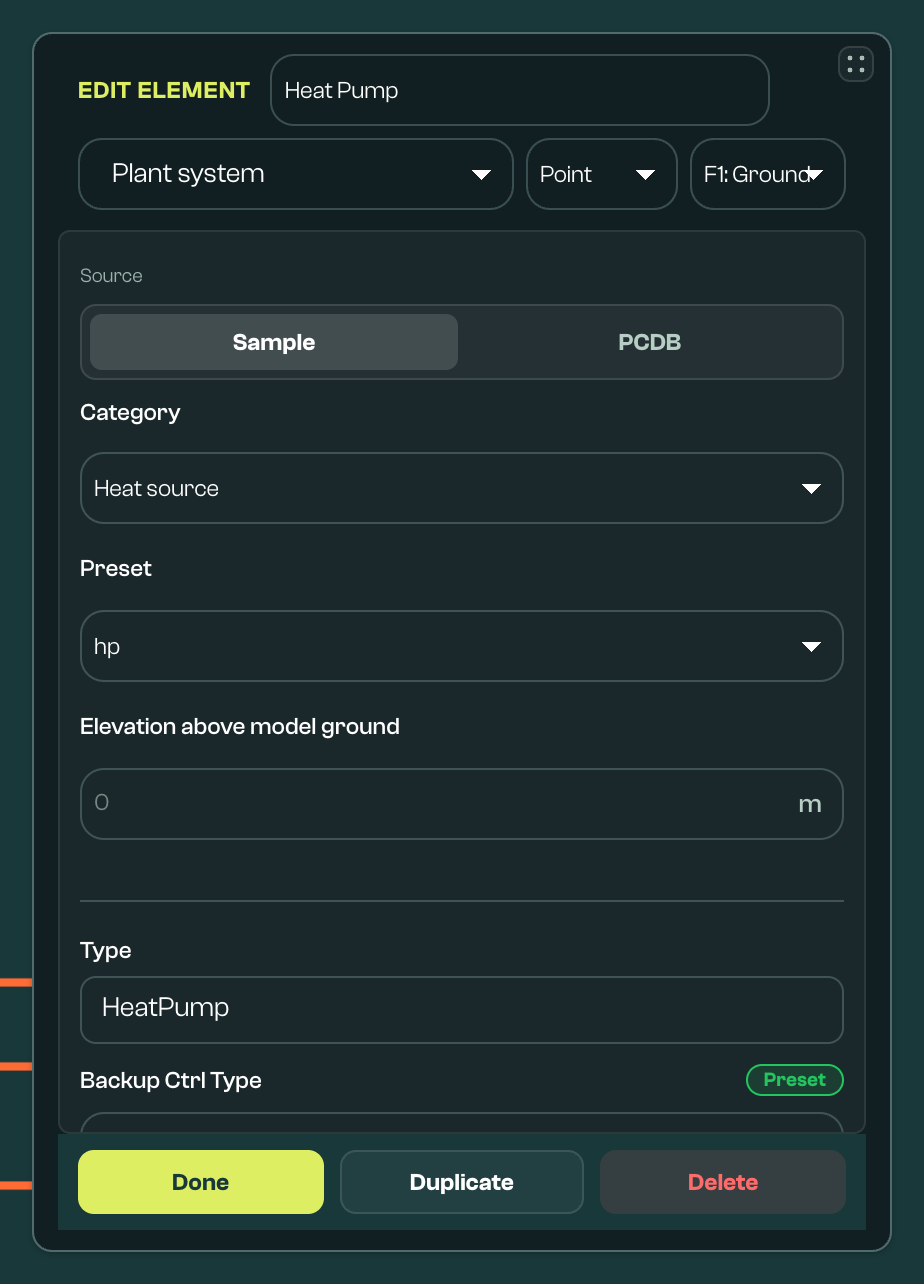
- Heat source. Add a Plant system. Under Source, choose Sample, set Category to Heat source and Preset to hp.
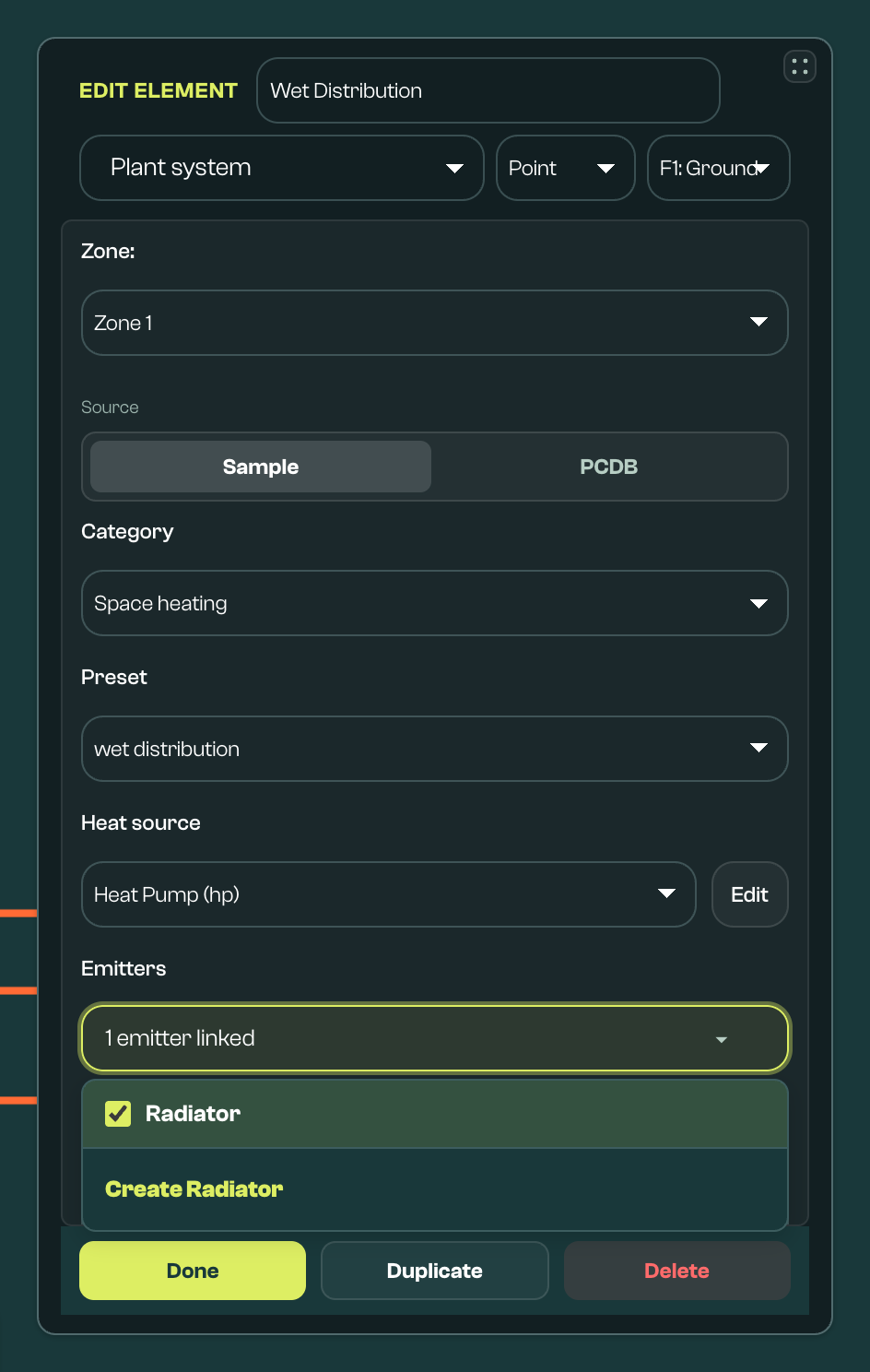
- Space heating. Add a second Plant system with Category Space heating and Preset wet distribution. Its Heat source dropdown links the heat pump; if the model has only one heat source, Vulcan links it for you.
- Radiators. In the same Editor, click the Emitters dropdown and choose Create Radiator at the bottom. Vulcan adds a radiator next to the Plant system, in its zone, already linked, and opens it. Set Unit Number to the number of radiators it represents. To add more radiator elements, select the Space heating system again and repeat, or tick existing emitters in Emitters to link them.
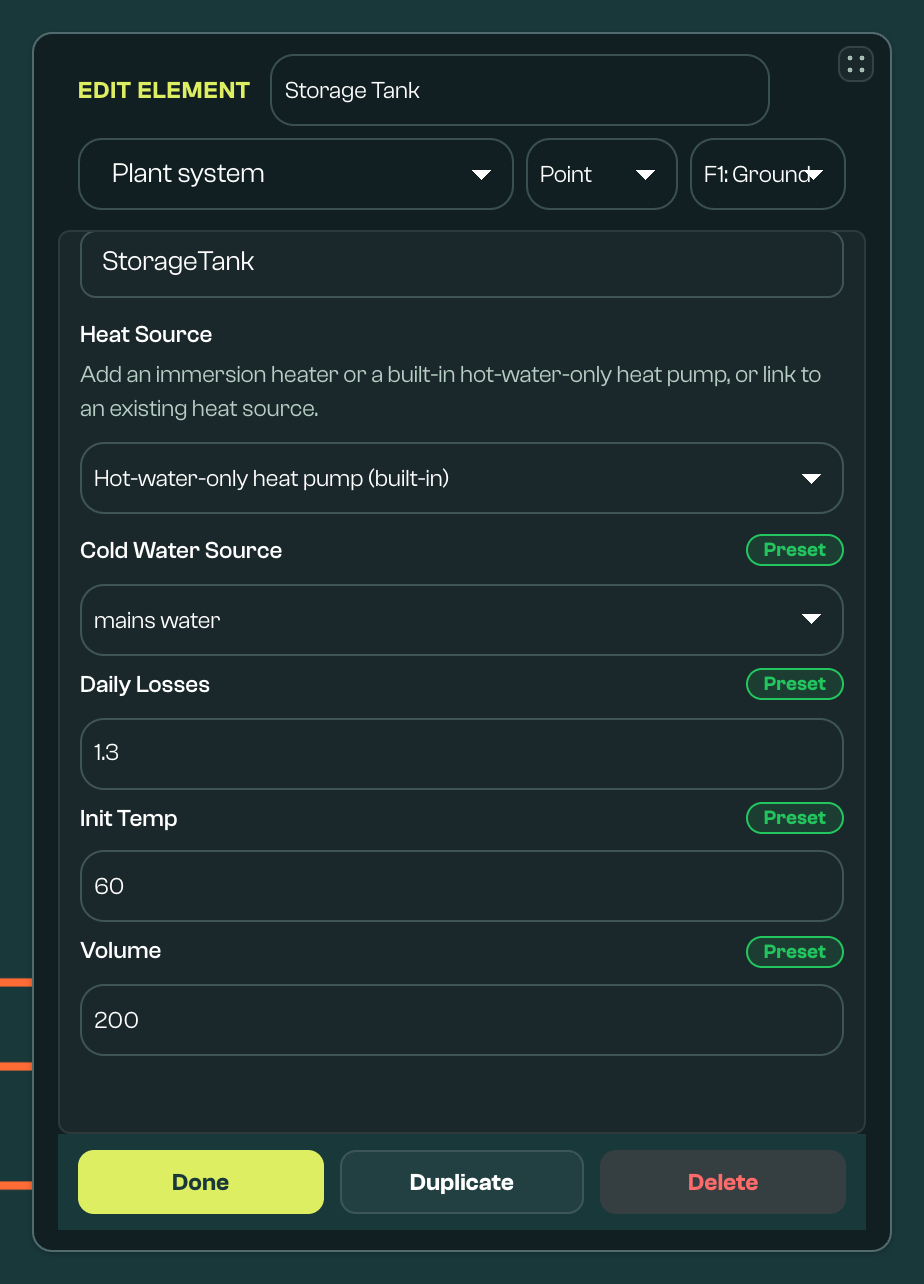
- Hot water. Add a Plant system with Category Hot water and Preset heat pump cylinder. It heats the cylinder from the heat source named
hp. - Ventilation. Add a Ventilation system and set its Ventilation Type (see Ventilation: MEV or MVHR).
The Space heating Plant system is the hub: it links one heat source to the emitters it serves.
Other common systems
- Gas combi and radiators. Heat source gas boiler; hot water combi boiler, which links to the heat source named
boiler; then space heating and radiators as above. A combi boiler from PCDB adds the boiler and its combi hot water in one Plant system (its card shows DHW included), so don't add a separate hot water system: it would also definehw cylinderand raise a conflict (see Several heat sources). - Heat pump, underfloor heating, and a cylinder. As the worked example, but draw a Heat emitter as an area over the heated floor instead of creating radiators. An emitter drawn as an area starts as Underfloor Heating (one drawn as a line starts as Radiator). Enter its Area (m²) and choose the Space heating system in its Space heat system field.
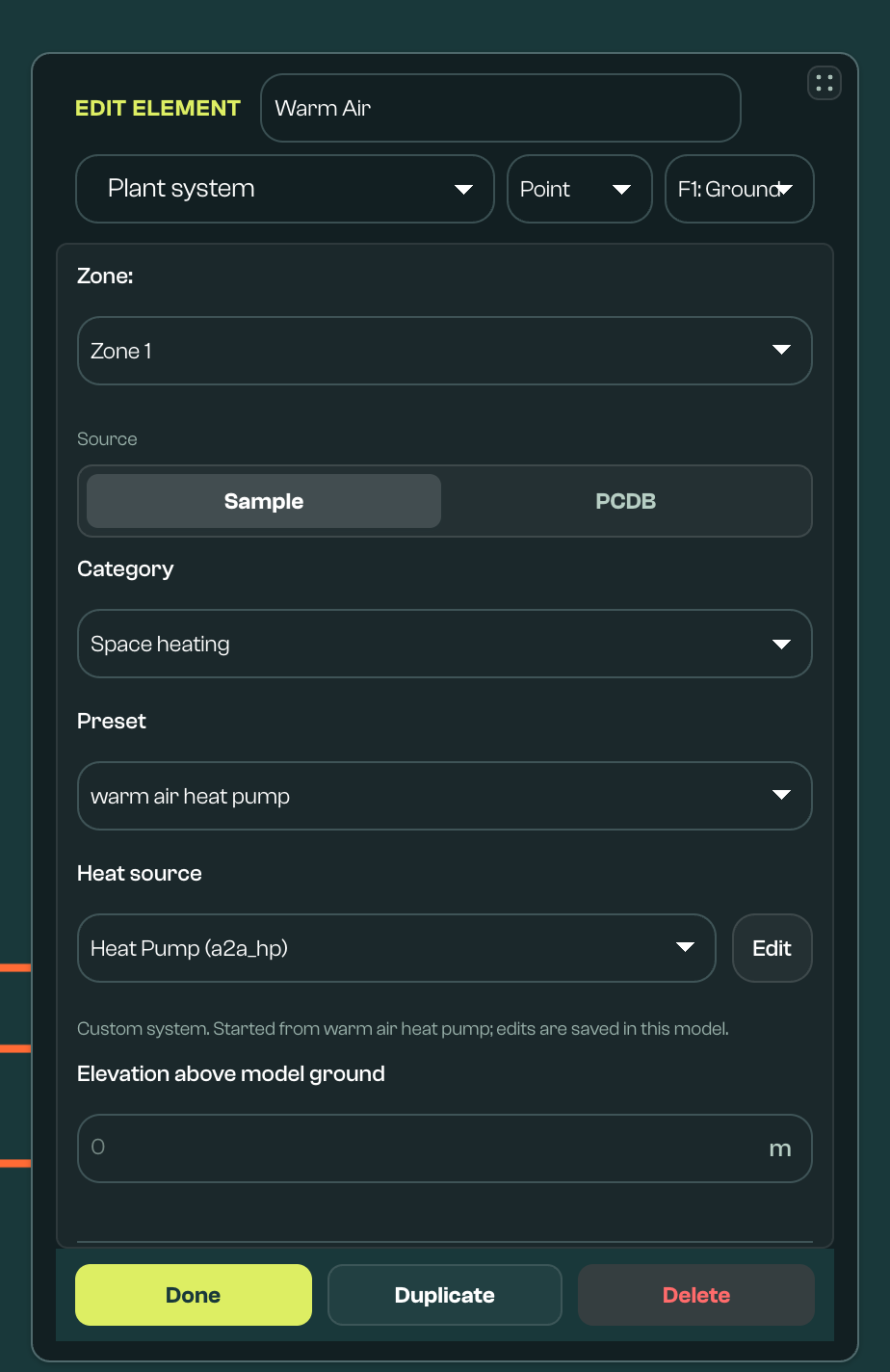
- Air-to-air (warm air). Heat source a2a heat pump; space heating warm air heat pump. Warm air has a Heat source but no emitters. Give the cylinder its own heat, for example the immersion cylinder or hwo heat pump cylinder preset.
- Electric storage or panel heaters. Space heating elec storage heater or instant elec heater. These need no heat source and no emitters. Hot water is usually immersion cylinder.
How links work
- Space heating → heat source. The Heat source dropdown lists every heat source by element name, with its system name in brackets, for example Heat Pump (hp). Edit opens the linked element.
- Space heating ↔ heat emitters. The link is stored once, on the emitter, so both sides always agree. From the system, Emitters lists its emitters and any unlinked emitters in its zone. From an emitter, the Space heat system field chooses the system, or Create new SpaceHeatSystem... makes a wet distribution system and links it. Link emitters only to a wet distribution system.
- Hot water → heat source. For a cylinder, use the Cylinder heaters list in Advanced Fields. Choose a heater, then click Add heater. The choices are Immersion heater, Hot-water-only heat pump (sample), or a heat source in the model (shown as Linked: followed by its name). A combi boiler picks its boiler in Advanced Fields.
Heat emitters are drawn on the canvas (radiators and fan coils as lines, underfloor heating as an area), but their position only sets their zone. Their output comes from Unit Number (how many radiators or fan coils) or Area (m²) (underfloor heating). Set an emitter's type with its Subcategory: Radiator, Underfloor Heating, or Fan Coil.
Where system values come from
Select a Plant system and choose a Source.
Sample works for all four categories. Choose a Category, then a Preset. The heat source presets are hp, hp large, and hp upsized (air-to-water), a2a heat pump (air-to-air), exhaust air mev heat pump, gas boiler, and heat battery. Heat source, hot water, and cooling presets give the system a fixed name, such as hp, and other systems link to it by that name.
PCDB covers boilers, heat pumps, some hot water products, and WWHRS; the product sets the category. Click Browse PCDB…, pick a product, then Apply system.
| Product type | What you can do |
|---|---|
| Regular boilers, combi boilers, smart hot water tanks, and waste water heat recovery systems (WWHRS) | Apply and calculate in Vulcan. Add the heat source before a smart hot water tank: applying the tank links it automatically. |
| Heat pumps | Apply and submit to ECaaS, the government's calculation service (see Calculate), but not calculate in Vulcan. They are marked ECaaS-Only. A hot-water-only heat pump turns the Plant system into a cylinder heated by that heat pump. |
| Booster heat pumps, ventilation, emitters, electric heaters, heat batteries, HIUs, heat networks, and other types | Not yet. They are listed under Planned mappings or Reference only. Use a sample preset or Advanced Fields instead. |
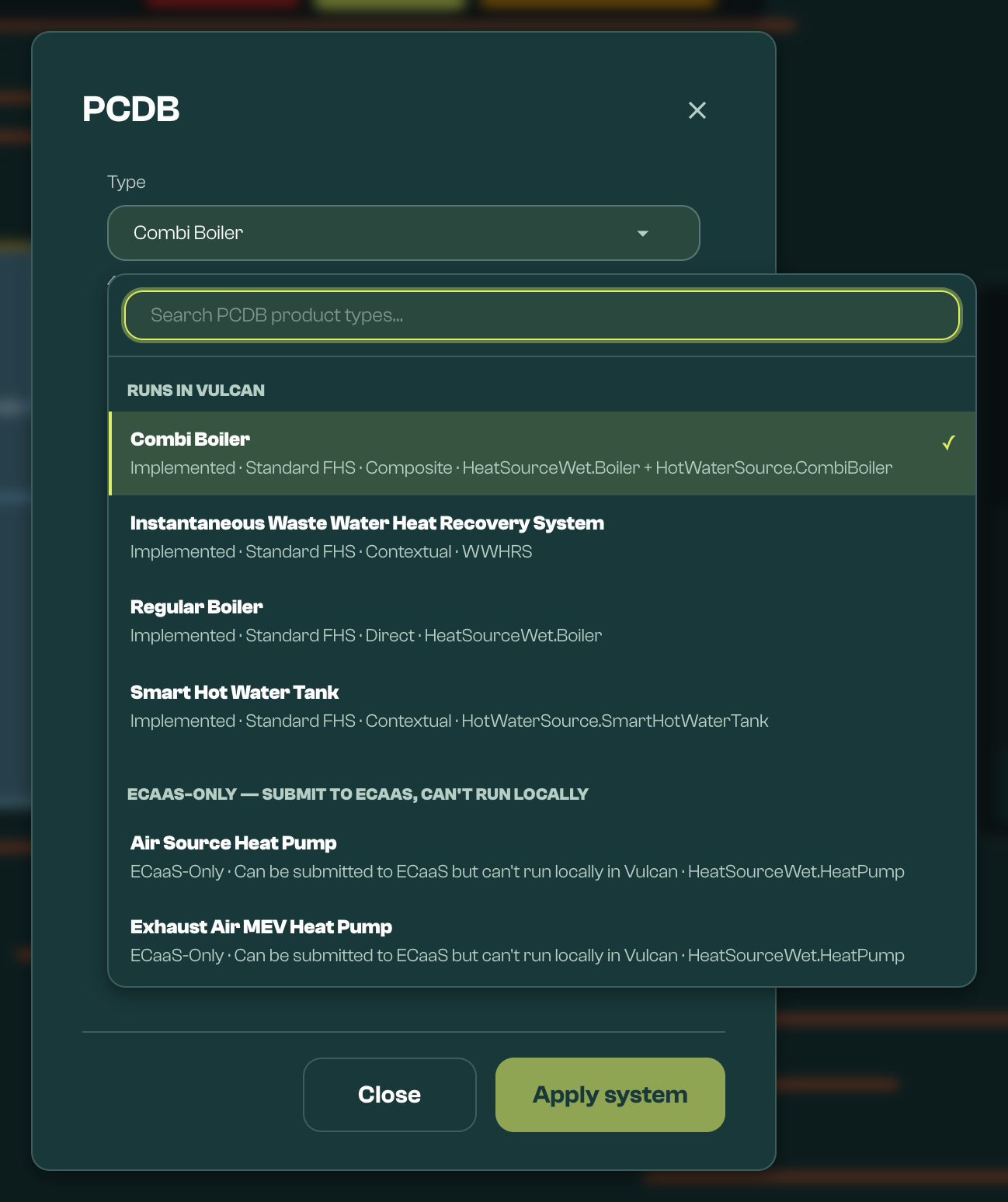
An applied heat pump shows: "ECaaS-only product: this model can be submitted to ECaaS but can't run locally in Vulcan." To calculate a heat pump model in Vulcan, use a sample preset or enter the heat pump in Advanced Fields.
Advanced Fields shows every input. Start from a preset and change values, or fill in the required fields yourself. After any edit, including choosing a heat source, the Editor shows Custom system, and the edits are saved in this model. Without a preset, Vulcan warns: "No system preset selected — pick a library preset or complete required fields in Advanced".
Ventilation: MEV or MVHR
FHS needs a Ventilation system in every dwelling. Set Ventilation Type to Intermittent MEV, Centralised continuous MEV, Decentralised continuous MEV, or MVHR.
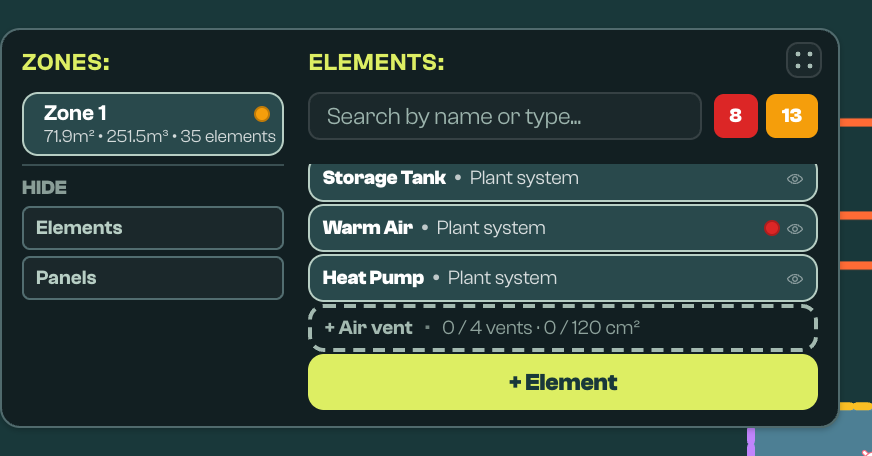
- MEV: add Air vent elements for background ventilation. The Elements panel shows a + Air vent prompt until there are enough; click it to add them, placed on windows in habitable rooms where possible.
- MVHR: in the Ventilation system, use the MVHR ductwork and MVHR terminals + buttons to draw linked Ductwork and MVHR terminal elements, or draw them yourself and set their MVHR unit. To add all the runs at once, hold A with the Ductwork tool (see Ductwork and primary pipework). Don't add background vents.
Rules Vulcan checks
| Rule | What you will see |
|---|---|
| The dwelling needs space heating, hot water, and a Ventilation system. | A + prompt in the Elements panel for each missing system, for example + Plant system · Space heating. Hover over it for the message, such as "FHS: Space heating system". |
| A wet or warm air system must link a heat source, and every heat emitter must link a Space heating system. | SpaceHeatSystem "<name>" must link a heat source, or "SpaceHeatSystem link is required" on the emitter |
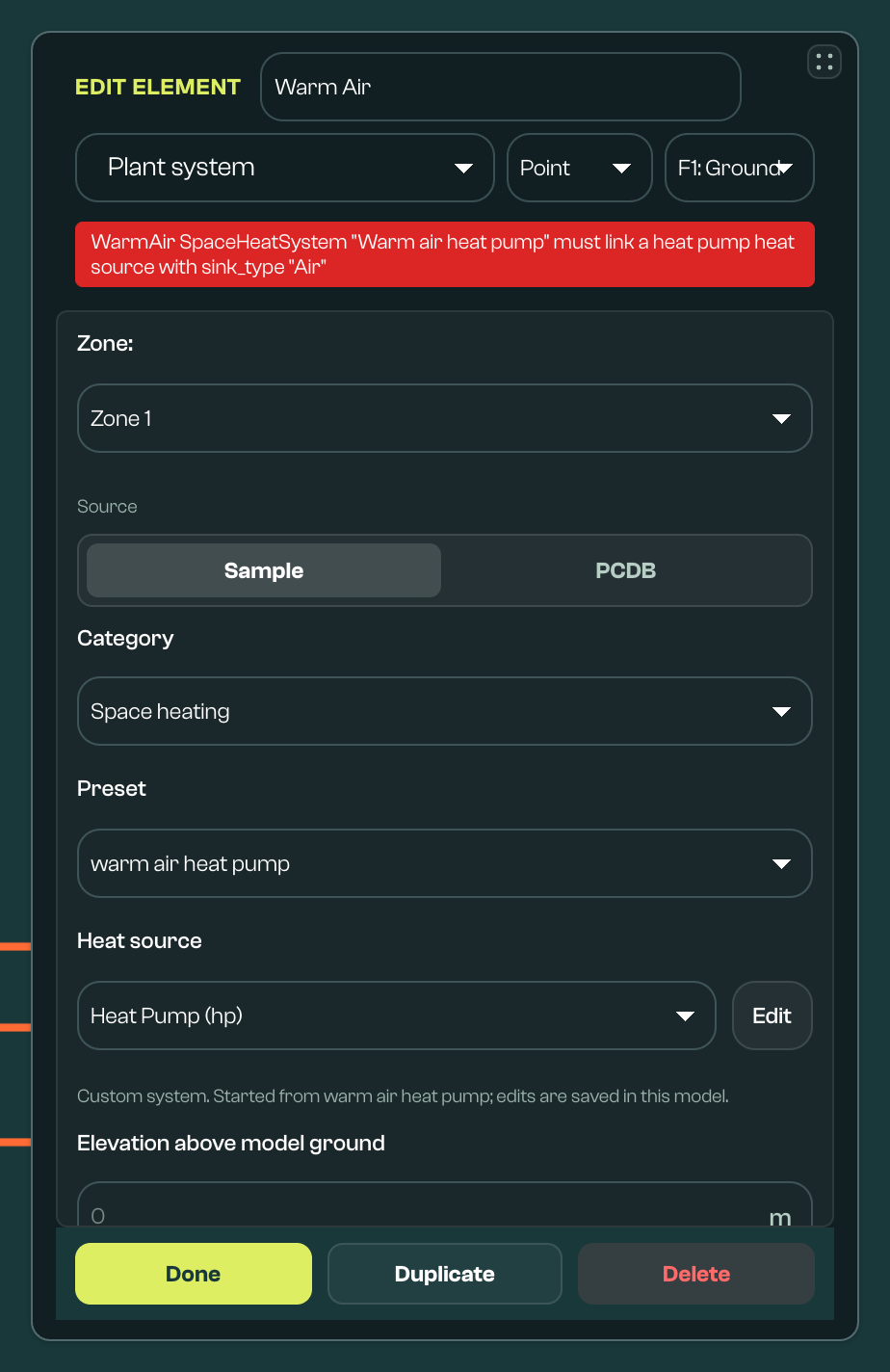
| Warm air needs an air-to-air heat pump. | Messages such as WarmAir SpaceHeatSystem "<name>" must link a heat pump heat source with sink_type "Air" |
| An exhaust-air heat pump needs Centralised continuous MEV or MVHR. | "Exhaust-air heat pumps require Centralised continuous MEV or MVHR ventilation", or "Exhaust-air heat pumps cannot be combined with Intermittent MEV or Decentralised continuous MEV" |
| Ductwork and MVHR terminal elements belong to an MVHR unit only. | "Parent ventilation system must use MVHR" |
| MEV needs enough background vents. For continuous MEV: at least 40 cm² of vent area per habitable room, and at least bedrooms + 2 vents. Intermittent MEV needs more area (80–100 cm² per habitable room, plus bathrooms and the kitchen). Vulcan checks the dwelling total, not each room. | The + Air vent prompt, for example "0 / 4 vents · 0 / 120 cm²". Hover over it for the full message. |
| A dwelling with MVHR should have no background vents. | "Part F: dwellings with MVHR should have no background vents — remove existing vents or switch ventilation strategy." |
For example, here the warm air system is linked to hp, an air-to-water heat pump, so Vulcan flags it. Linking it to the air-to-air a2a_hp clears the message.
Part F checks also cover extract rates and the number of MEV units, and use the dwelling's room counts, so label spaces first (see Zone editor).
Several heat sources
A dwelling can have more than one heat source or cooling system, as long as each has its own name. It has one hot water system, named hw cylinder. Plant systems that define the same name with the same settings count as one system. If they define it differently, the Editor shows:
"Systems rows 'A' and 'B' both define heat source 'X' differently — remove one of them, or make them identical."
Save then fails with build error E060, which gives the same message but names the section by its HEM key, such as HeatSourceWet.
Presets share names: hp, hp large, and hp upsized all name their heat source hp, every hot water preset is hw cylinder, and both air-conditioning presets are space_cooling (no cooling adds nothing). So two Plant systems using hp with the same settings count as one heat source, but hp plus hp large is a conflict.
Which check catches what
| When | Check | What it catches |
|---|---|---|
| While you edit | Live validation on the element, canvas label, and Validation badges | The rules above, including Part F, missing links, name conflicts, and ECaaS-only products |
| On Save | Schema check | Missing or invalid inputs, and E060. Errors appear next to Save, and the model is hidden from Scenarios until it saves cleanly. |
| On calculation | FHS checks | FHS compliance-path inputs. Global Settings shows: "Schema checked on save; FHS checks on calculation." |
| Before a local run | ECaaS-only check | ECaaS-only products. The run stops with: "ECaaS-only product (…): this model can be submitted to ECaaS but can't run locally in Vulcan." |
| During the HEM run | HEM | Anything the earlier checks miss. |
WWHRS, cooling, solar panels, and batteries
- WWHRS: add it as a Plant system from PCDB. There is no sample preset.
- Cooling: a Plant system with Category Space cooling. Cooling systems combine by name in the same way as heat sources.
- Solar panels and batteries: draw a Solar panel on the roof and enter its Peak Power (kWp), and add a Battery storage element with its Capacity (kWh). They are not Plant systems.
Set system values on the element, not in the defaults file: the defaults are fixed by the HEM model version. To compare system options across models, use the Scenarios Systems parameters.